

Control who sees your event
On the event’s Event & Access page, set what anyone can open without a role, who gets a role, and which link or QR code you hand out. People with a role see the event whatever the public setting is.
Before you begin
Section titled “Before you begin”- Your role on the event decides what you can change here. Changing What the public can see needs Editor or higher, and only the event’s Owner and Managers can change who has access. See Event roles on the Roles and permissions page.
Choose what the public can see
Section titled “Choose what the public can see”-
Open the event from Events → My events, then select Event & Access under Manage.
-
Under Public access, select one option in What the public can see. It applies at once.
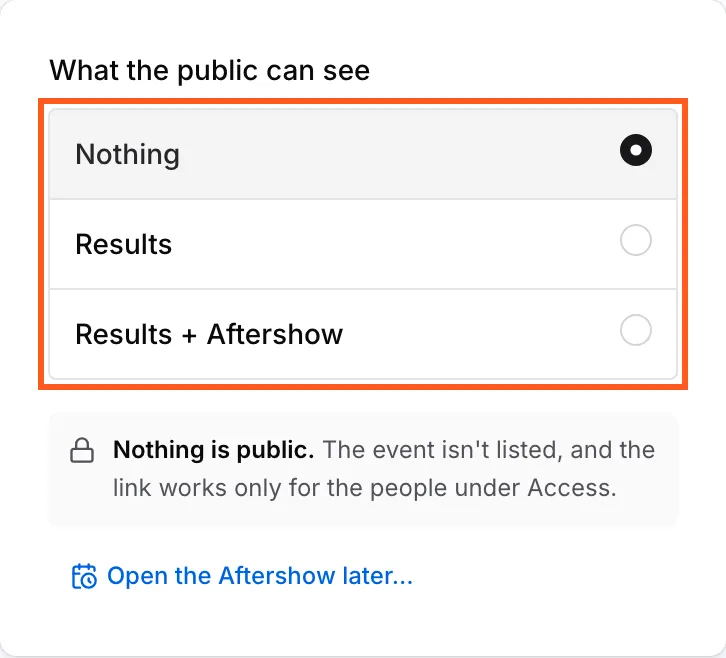
- Nothing: only people with a role on the event can open it, and the event isn’t listed.
- Results: results and start lists are public and the event is listed publicly. The Aftershow stays private.
- Results + Aftershow: results, start lists and the Aftershow are public, and the event is listed publicly.
If the Aftershow is scheduled to open, choosing Results + Aftershow asks Open it now?, and choosing Nothing or Results asks Cancel the scheduled release?. Keep schedule leaves everything as it was.
To open the Aftershow at a set time rather than now, use Open the Aftershow later…, as described in Publish the Aftershow.
Give people access
Section titled “Give people access”Add a club member
Section titled “Add a club member”On an event that belongs to a club, give a member of that club a role on this event only:
-
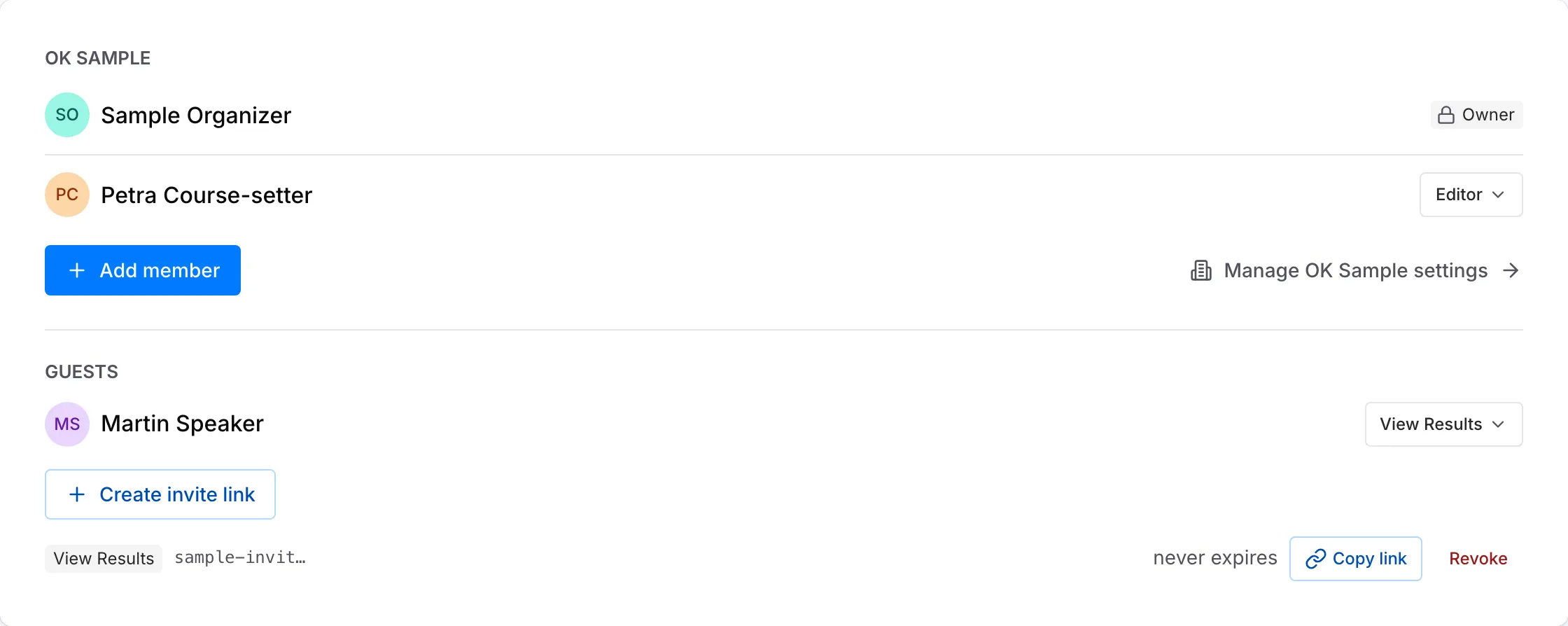
Under Access, select Add member.
-
Pick the person in Add a club member….
-
Select their role under Grants.
-
Select Add. The person appears in the club’s list with that role.
To give someone a role on every event of the club, select Manage your club settings beside Add member and set the role there, as described in Set up your club. To change or take away a role on this event, select the role beside the person’s name, then pick another role or Remove access.
Connect the event to a club
Section titled “Connect the event to a club”An event created without a club shows Connect to an organization under Access, to its Owner only. Connecting gives the club’s roles on this event. The club’s Managers can manage it, and you can add the club’s members with Add member.
- Under Access, pick the club in Select an organization…. Only clubs where you can create events are listed. If it says You don’t manage any organizations yet — create one in Settings., create a club as described in Set up your club, or ask the club’s Manager to give you Editor in the club.
- Select Connect.
- In the Connect to organization dialog, select Connect.
Invite guests
Section titled “Invite guests”Give anyone outside the club a role with an invite link. On an event without a club, this is the only way to give someone a role.
- Under Guests, select Create invite link.
- Under Link grants, select the role the link gives.
- Under Expires, select when the link stops working.
- Select Create link.
- On the new link’s line, select Copy link and send the link to the people you invite.
The invitee opens the link and, if logged out, selects Log in or Create account. A role needs an OResults account. They then appear under Guests with the link’s role, or in the club’s list if they are a member of the club.
To stop a link letting anyone new in, select Revoke on its line. What revoking does to people who already joined, and every expiry option, are listed under Guests on the Roles and permissions page.
Give a third party access
Section titled “Give a third party access”- Timing software or the OResults Connector uploads with the event’s API key, shown under Automation. Anyone who has the key can upload start lists and results to the event, so give it only to whoever runs your timing software. The steps are in Connect your software with the API key on the Upload start lists and results page.
- A person gets an invite link with the role they need, as in Invite guests above: a speaker who needs results before they are public, or a helper who uploads files for you. Pick the lowest role that covers the job. Event roles lists what each allows.
Share the event
Section titled “Share the event”-
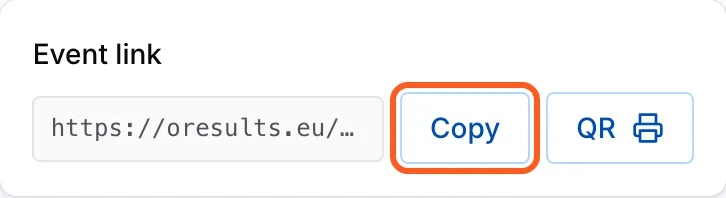
Under Share, select Copy next to Event link, and paste the link where runners will find it.
-
For a poster or the entry desk, select QR. Your browser’s print dialog opens with a sheet carrying the event link as a QR code.
The event link is the same whatever What the public can see is set to. It grants no role. To let someone into an event that is not public, send them an invite link instead.
Troubleshooting
Section titled “Troubleshooting”Give people access
Section titled “Give people access”This event isn’t connected to any organization.: the event belongs to no club, and only its Owner can connect it or invite people. Ask the Owner to connect it to your club or to send an invite link.
The person is missing from Add a club member…: the list holds only the club’s members who have no role on the event yet, and a follower of the club is not a member. Send them an invite link under Guests, or ask them to join the club as described in Join your club.
No Add member or Create invite link button: only the event’s Owner and Managers can change who has access. Ask one of them.
This invite link is no longer valid: the link expired or was revoked. Create a new invite link and send it.
Share the event
Section titled “Share the event”The event organizer has not made this event available to the public (yet): What the public can see is Nothing, and the visitor is not logged in. Choose Results or Results + Aftershow, send the visitor an invite link, or ask a visitor who has a role to log in.
Start list not yet published: the event is visible, but no start list or results have arrived. Upload them as described in Upload start lists and results.
Runners see the results but not the Aftershow: What the public can see is Results. Choose Results + Aftershow, or schedule it as described in Publish the Aftershow.