

Getting started
Viewing events, their results and route analysis doesn’t require an account. To upload and analyze your own route in Aftershow, create a free OResults account and connect your GPS watch by following the steps below. You may also add your registration number and join your club.
-
Create an account at oresults.eu/register: choose Continue with Google, or fill in Name, Email address and a Password of at least 8 characters and choose Sign up. Your name labels your track in the Aftershow. If it says An account with “…” already exists. Log in with your password, or use “Forgot password?” on the login page to set a new one., you already have an account: log in instead. Reset password on the login page emails you a link to set a new one.
-
Open your account menu (the avatar at the top right; on a phone, Account in the menu), choose GPS watch and follow its three setup steps, which end with Connect intervals.icu. Your watch uploads each run to intervals.icu, a free training log, and intervals.icu passes it on to OResults. Connect your GPS watch walks through the setup and what to do when a run does not arrive.
-
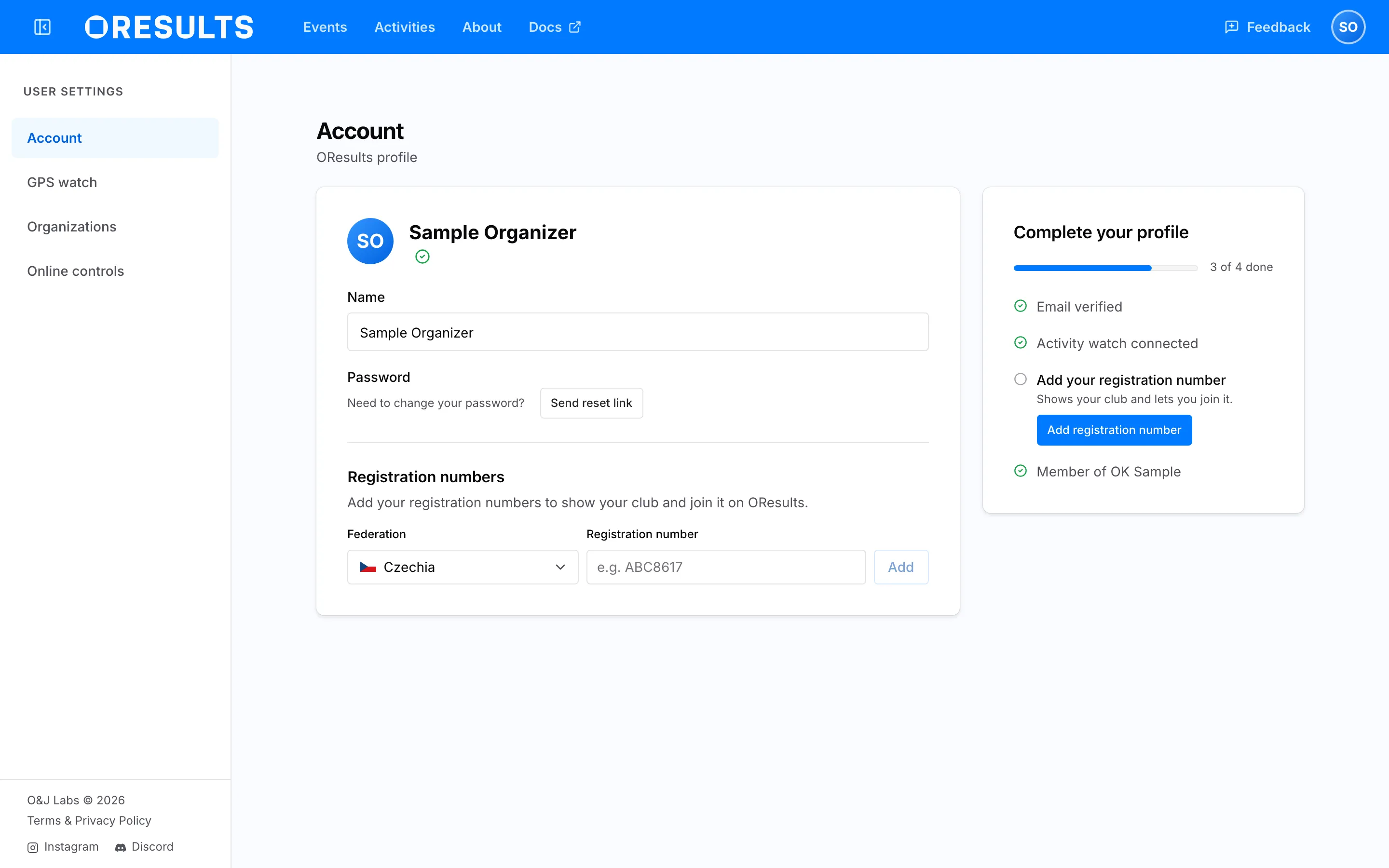
In your account menu, choose Account, and under Registration numbers pick your Federation, type your registration number into Registration number and choose Add. See Add your registration number on the Join your club page.
-
Run your next race with the watch. Put your run in the Aftershow covers how the run reaches the event, and what to do when it does not.
Without a connected watch, upload the GPX or FIT file of your run: see Upload a run on the Put your run in the Aftershow page.