

Set up online controls
An online control sends each punch to OResults as the runner passes, so the live results show a split before the runner finishes.
Before you begin
Section titled “Before you begin”- Courses uploaded to the event, as Upload maps and courses describes.
- Devices listed under Online controls in the account menu (the avatar at the top right; on a phone, Account in the menu) of the account that created the event. Get Blueboxes and Use a phone as an online control say how to get them there.
- An SI station at each online control. A Bluebox receives punches from SIAC cards directly; for older cards the station must be an SRR station.
Configure the SI stations
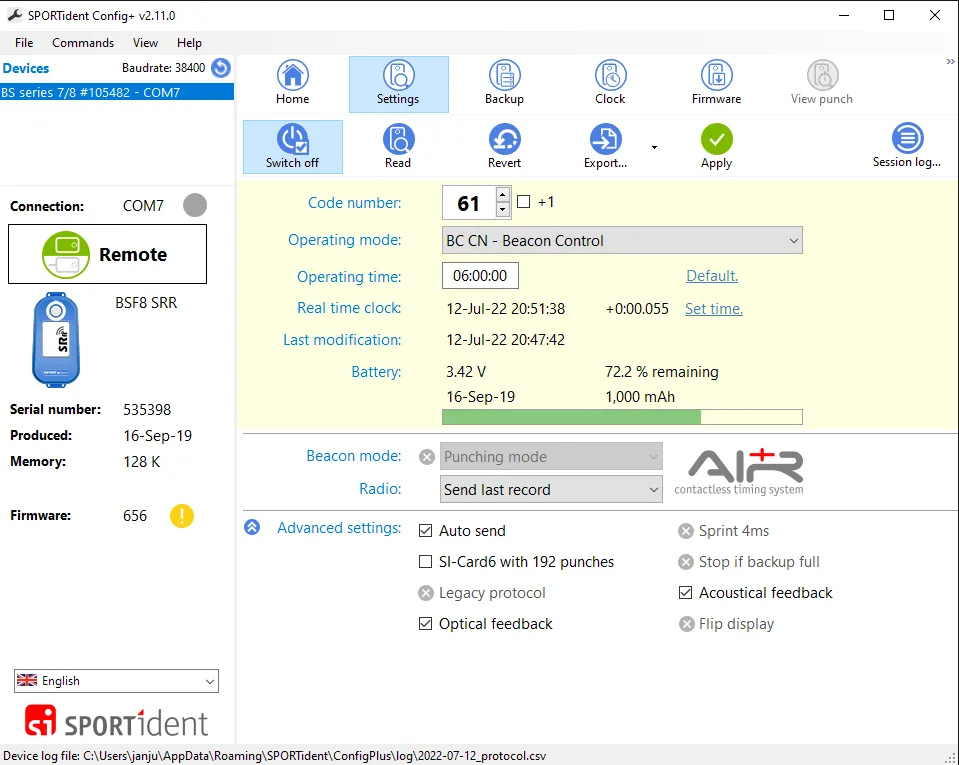
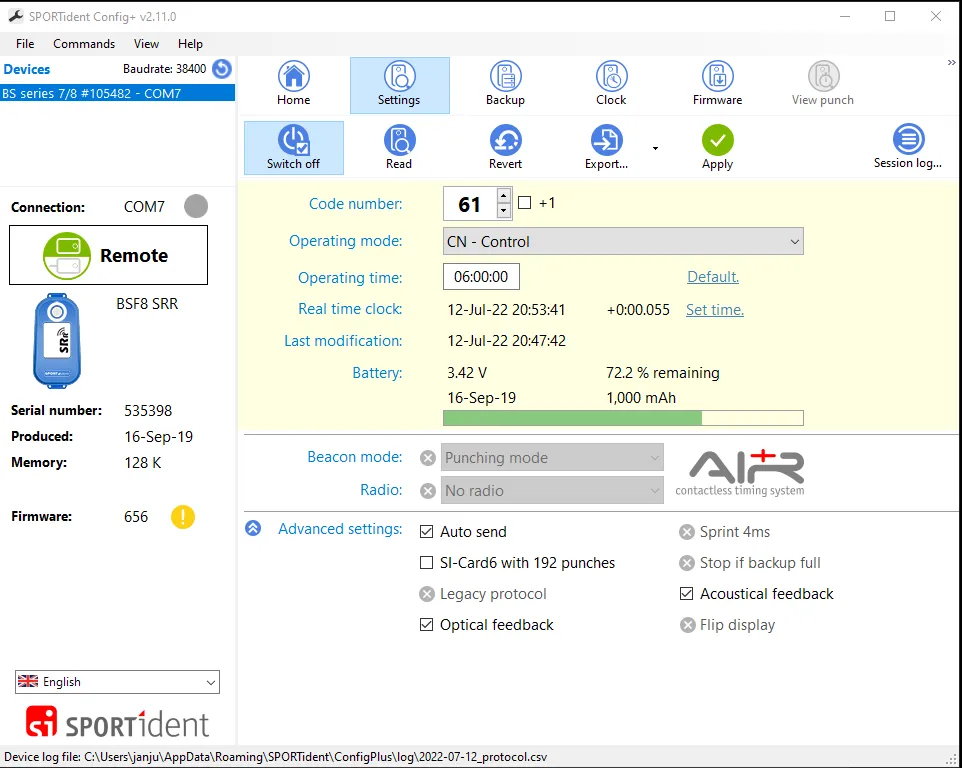
Section titled “Configure the SI stations”Configure each station with SPORTident Config+. Leave every setting this page does not name as your event needs it.
- With the station connected, select Settings.
- Under Advanced settings, check Auto send, so an SRR station forwards each contact punch to the device.
- For contactless punching, set Radio to Send last record, so SIAC cards send their punch record as well. If Radio is grayed out, set Operating mode to BC CN - Beacon Control first.
- Select Apply to write the settings to the station.
Station codes
Section titled “Station codes”OResults reads what a punch is from the code of the station that recorded it:
| Station | Code |
|---|---|
| Start | 29 |
| Check | 30 |
| Finish | any code below 29, by convention 1–10 |
| Online control | 31 or above |
Select the online controls
Section titled “Select the online controls”-
Open the event from Events → My events, then select File upload under Manage.
-
Scroll to Controls in results. If it says Upload courses to select which controls will appear in the results., upload the courses first, as Upload maps and courses describes. If it says Fix courses to select online controls., none of your class names match a course. Match them as Match classes to courses on the Upload maps and courses page describes.
-
Select each code that has a station with a device beside it. The code fills blue and is saved at once, with no save button. A code is online on every course that visits it. You never select the finish: Finish (codes below 29) is always included.

-
Under Classes and courses, open Control sequences and check that the online controls print in bold.
Uploading the courses again keeps the selection for every code the new courses still contain.
Link the devices to the event
Section titled “Link the devices to the event”A punch counts for the event its device is linked to when the punch arrives. A device linked to no event has its punches refused, so link every device before the first start.
- Open the event from Events → My events, then select Online controls under Manage. Under Link devices to this event, Available lists the devices on the account that created the event, including devices linked to other events.
-
Select Add next to each device. It moves to Assigned, and Remove unlinks it again.
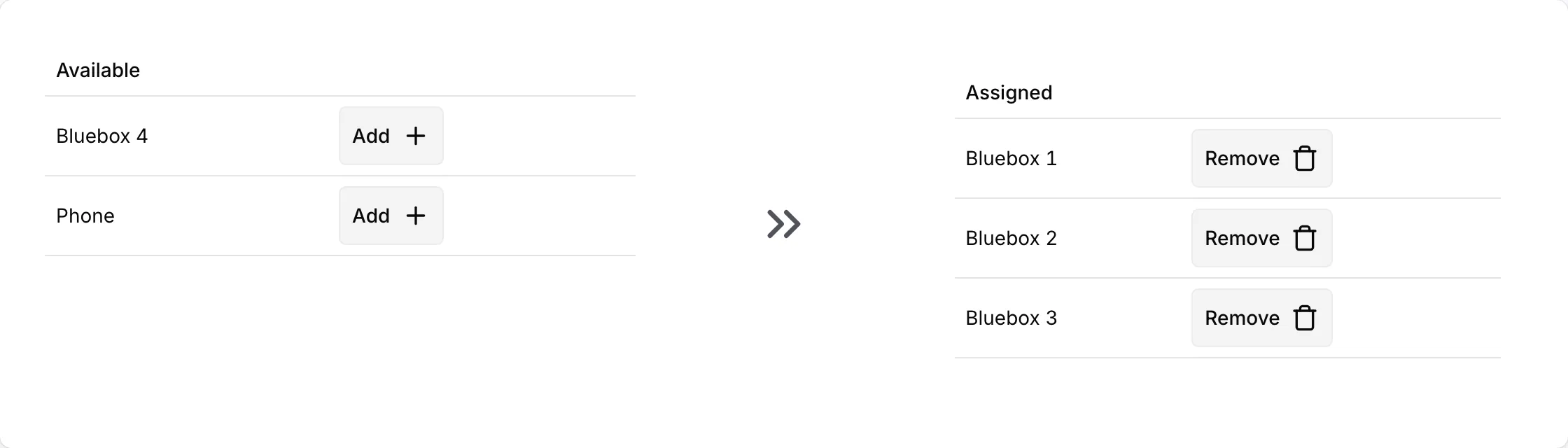
The linked devices appear in the Status table on the same page. Read it on race day as Monitor online controls on race day describes.
Troubleshooting
Section titled “Troubleshooting”Link the devices
Section titled “Link the devices”Failed to load data under Link devices to this event, with You do not have permission to view this content.: you are logged in with an account other than the one that created the event, and only that account can list and link its devices. Logging out and in again does not help. Log in with the account that created the event, or ask its holder to link the devices.
No devices available. Rent a Bluebox to get started. in the Status table: the account that created the event has no devices, or you are logged in with another account (the problem above). For rented Blueboxes, check When they arrive on the Get Blueboxes page. For a phone, create its device as Use a phone as an online control describes.
A device is missing from Available: it is already under Assigned, or it is on a different account. Check Online controls in the account menu of the account that created the event.
Select the online controls
Section titled “Select the online controls”No controls are marked as online in the healthcheck: no code is selected under Controls in results, so the results show no live splits. Select Select online controls on that line and select the codes.
The selection changed after a course upload: when the event’s courses carry control coordinates, a SportSoftware RadioControlList file sets the selection to exactly the codes it lists. Select the missing codes again, or add them to the list and upload it again.