

Upload start lists and results
Get the start list and results into your event, from your timing software while the race runs or by hand on the event’s File upload page. OResults builds the event’s runners and classes from them.
Before you begin
Section titled “Before you begin”- Edit access to the event. See Event roles on the Roles and permissions page.
- For an upload by hand: the start list, and later the results, exported from your timing software in a format listed under Formats on the Event files page.
Choose how data arrives
Section titled “Choose how data arrives”Pick one source for the start list and results, and keep it for the whole event:
- Your timing software’s integration, if you use MeOS, QuickEvent or OE12, which send the start list and results during the race, or SI-Droid Event, which sends the results. Nobody has to upload new results by hand. Connect it once with the event’s API key.
- OResults Connector, if your software has no integration but saves start list and result files to a folder. The Connector uploads each file as it is saved, with the same API key.
- Upload by hand, if neither fits or you only need the final results online. Every new results file is another upload.
- Load from ORIS, if you created the event from one of your club’s races in ORIS, the Czech orienteering registry, and the organizer publishes the start list and results there. The File upload page loads each with one click. See Load from ORIS.
Connect your software with the API key
Section titled “Connect your software with the API key”-
Open the event from Events → My events, then select Event & Access under Manage.
-
In Automation, select Copy at the end of the API key field.

-
Paste the key into your software as its page describes: MeOS, QuickEvent, OE12, SI-Droid Event or OResults Connector (its API key field).
-
Send the start list from your software, or the first results if it sends only results.
-
Open File upload under Manage. The Results card of the healthcheck shows how many runners arrived, in how many classes. If it still says No runners yet, compare the key in your software with the one in Automation, and paste it again if they differ.
Upload by hand
Section titled “Upload by hand”-
Open the event from Events → My events, then select File upload under Manage.
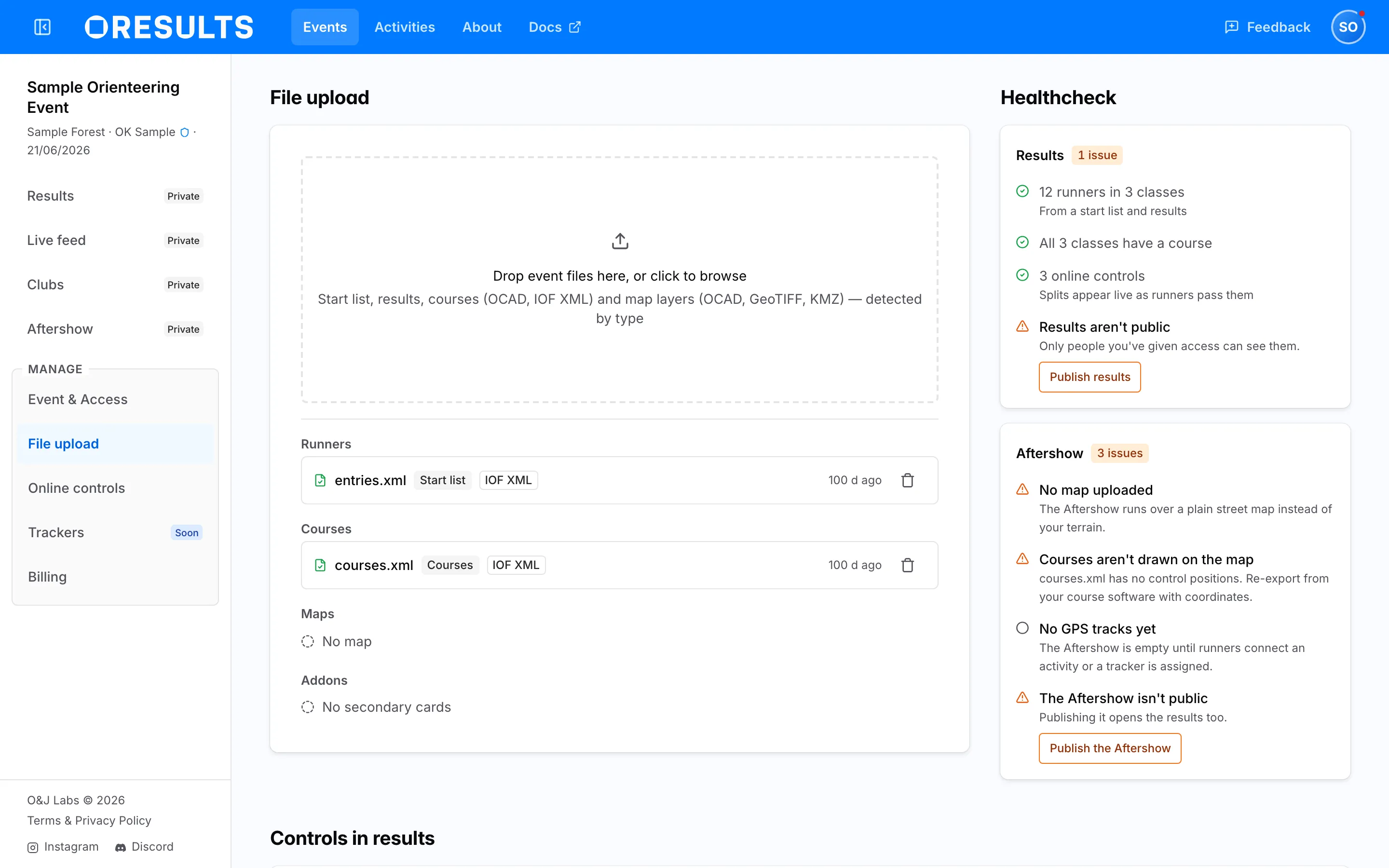
- Drag the start list onto Drop event files here, or click to browse, or select the box and pick the file. Add the results file in the same drop if you have one. Each file becomes a card under Ready to upload with its detected type, Start list or Results. Nothing is uploaded yet. If a card says Unrecognized — this format can’t be imported or This file type can’t be imported, remove it with its ×, export the file again in a format listed under Formats on the Event files page, and drop the new file. If your start list’s card shows Secondary cards or Courses instead, OResults read it as a different kind of file. Remove it with its × and export the start list again in a listed format.
- Read the line on each card, which says what uploading the file will do. What an upload will do on the Event files page lists every line. If it says Replaces the start list — runners not on it are removed, check that the new file lists every runner, late entries included. If it says Superseded — won’t upload, you dropped two files of the same kind, and only the one dropped last uploads. Remove the card you do not want with its ×.
- Select Upload 1 file, or Upload 2 files when you dropped the results too. Each card clears, and its file appears under Runners below the dropzone. If a card says Failed to parse IOF XML StartList or Failed to parse IOF XML Result List, OResults recognized the file but could not read a value in it. A bib number that is not a whole number is one cause. Correct the value in your timing software, export the file again and upload it.
- During the race, upload each new results file the same way. Its card says Updates the results.
Load from ORIS
Section titled “Load from ORIS”Only an event created from an ORIS race has this section: see the Upcoming ORIS races field in The minimum: results online on the Organize an event step by step page. The link to the race is set when the event is created and cannot be added later.
- Open the event from Events → My events, then select File upload under Manage. The page starts with Import from ORIS, which names the race, as in ORIS race 9939, and links to it in ORIS.
- Once the organizer publishes the start list in ORIS, select Load start list. OResults downloads the start list and imports it as an upload by hand would, so the event’s runners and classes come from it. It says Start list imported from ORIS. If the event already has a start list, Replace start list? asks first: All runners from the current start list and results will be replaced with data from ORIS. Recorded punches and courses are not affected. Select Confirm. If it says No start list published in ORIS yet, ORIS has no start list for the race. Nothing changes; try again once the organizer publishes it.
- After the race, select Load results. It says Results imported from ORIS. Load start list disappears once any runner has a result or any punch has arrived. If the event already has runners, Replace results? asks first: All runners and results will be replaced with data from ORIS. Recorded punches and courses are not affected. Select Confirm. If it says No results published in ORIS yet, ORIS has no results for the race. Nothing changes; try again once the organizer publishes them.
Do not load from ORIS while your software’s integration or OResults Connector sends to the same event: the caution under Upload by hand applies. During the race, use the integration; load the final results from ORIS afterwards only if nothing else sends them.
Troubleshooting
Section titled “Troubleshooting”Upload start lists
Section titled “Upload start lists”Runners are missing after you uploaded the start list again: a new start list replaces the old one, and runners not on it are removed. Upload a start list that lists every runner. Runners on it keep the results they already had.
A runner in the file does not appear: OResults identifies each runner by the first of these the file gives: a numeric or ORIS registration ID, the entry ID, the bib number, the SI card number. It skips a runner with none of them, and the second of two runners who share the one it uses. Make that value unique in your timing software, then upload the start list again.
Runners appear twice, or disappear after an upload: the start list and results came from two sources, such as your software’s integration and an upload by hand. Clear the runners and start again from one source:
- On File upload, select the trash icon on the Runners set, then Confirm. Punches and courses stay.
- Send the start list and results again from one source only.
Start times are off by whole hours: the event’s Timezone is wrong now, or was different when the start list arrived. See the Timezone caution in The minimum: results online on the Organize an event step by step page. On Event & Access, correct Timezone under Event info if needed, select Save changes, then upload the start list again.
Upload results
Section titled “Upload results”A runner deleted in your timing software is still in the results: a results upload adds and updates runners but does not remove a runner missing from the file. Send the start list again from the same source as the results. Runners not on it are removed, and the others keep their results.
Load from ORIS
Section titled “Load from ORIS”Import from ORIS is not on the File upload page: the event was not created from an ORIS race. The link is set only in the New Event dialog and cannot be added later. Upload the files by hand, or create the event again from the race and delete this one.
Failed to fetch export from ORIS: ORIS did not answer. Nothing changes. Try again later, or download the export from ORIS and upload it by hand.
Connect your software
Section titled “Connect your software”Uploads stopped arriving after you created a new event: every event has its own API key, created with the event, and your software still sends to the previous event. Copy the new event’s key from Automation on its Event & Access page and paste it into your software.