

Put your run in the Aftershow
Connect your run to its event and class, and it plays in that event’s Aftershow once the organizer opens it. OResults makes most connections on its own. You connect the rest by hand and fix any it got wrong.
Before you begin
Section titled “Before you begin”- An OResults account: see Getting started.
- The GPX or FIT file of your run, unless your watch sends runs to OResults: see Connect your GPS watch.
Upload a run
Section titled “Upload a run”-
Open Activities and select Upload activity.
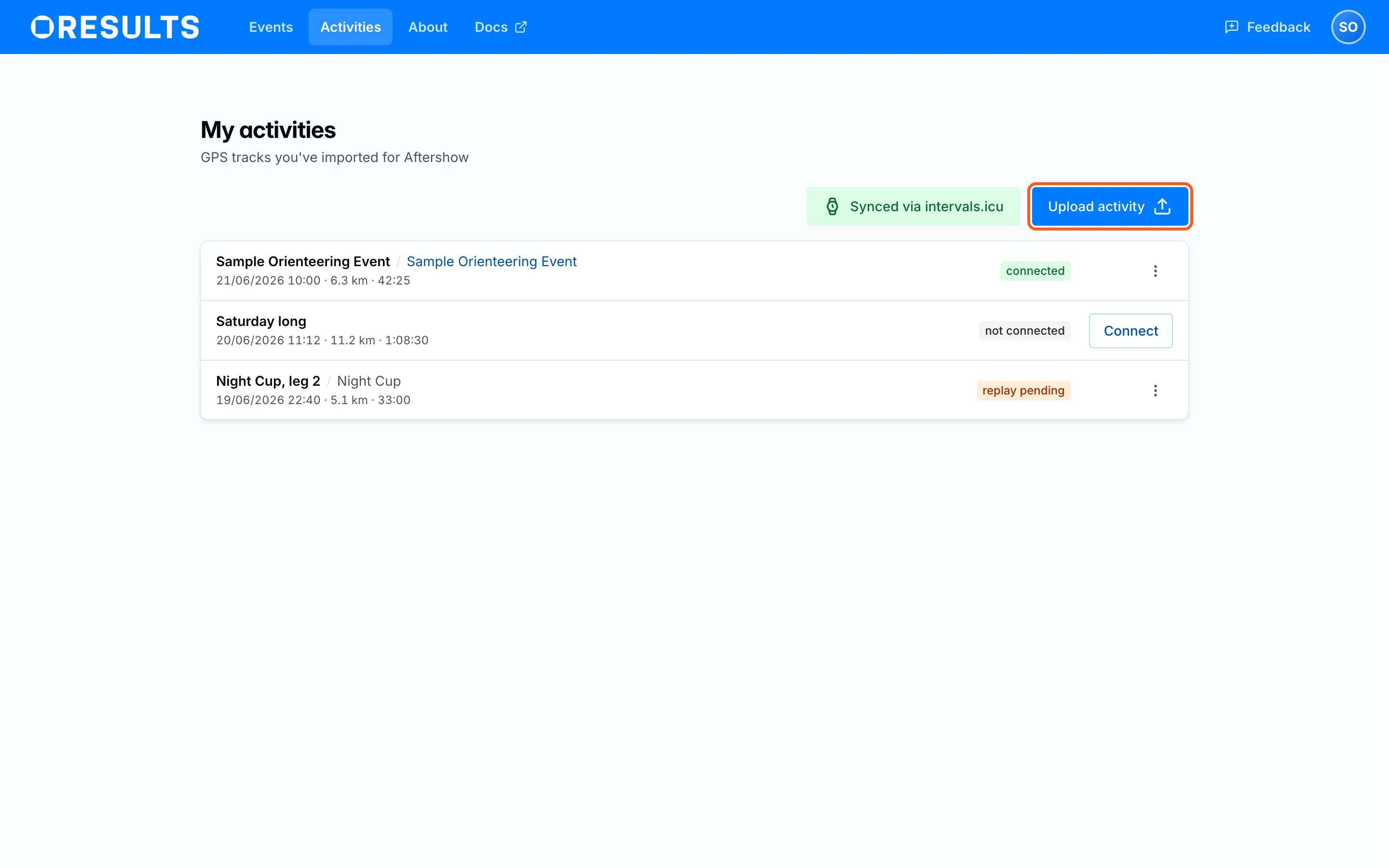
-
Drop the file on the box, or select the box to browse for it. If it says Only GPX and FIT files up to 50 MB are supported., export the run from your watch’s app as a GPX or FIT file.
-
Optionally, fill in Activity name (optional). Left empty, OResults uses the name in the file, or names the run after its time of day.
-
Select Upload. If it says Invalid GPX file or Invalid FIT file, export the file again from your watch’s app and upload the new copy. If it says File contains no GPS track points with timestamps, the file holds no recorded positions with times, as with a planned route or a run recorded without GPS. Upload the file of the recorded run instead.
The Connect activity dialog opens next with Activity uploaded. Now connect it to an event. Connect the run there, as described below, or select Don’t connect now. The run stays in your list, and OResults connects it on its own if it can.
Connect it to your event
Section titled “Connect it to your event”OResults tries to connect every run you upload or sync on its own. It considers only events whose results or Aftershow are public. Your recording must have ended between 3 hours before and 24 hours after the date and time the organizer set for the event.
OResults tries again when the organizer publishes the event, uploads courses, a map or results, or changes the event’s date. A run uploaded before the event is public connects later without you.
When OResults cannot decide, the run’s row shows why and a Connect button. To connect it yourself:
-
On the run’s row, select Connect.
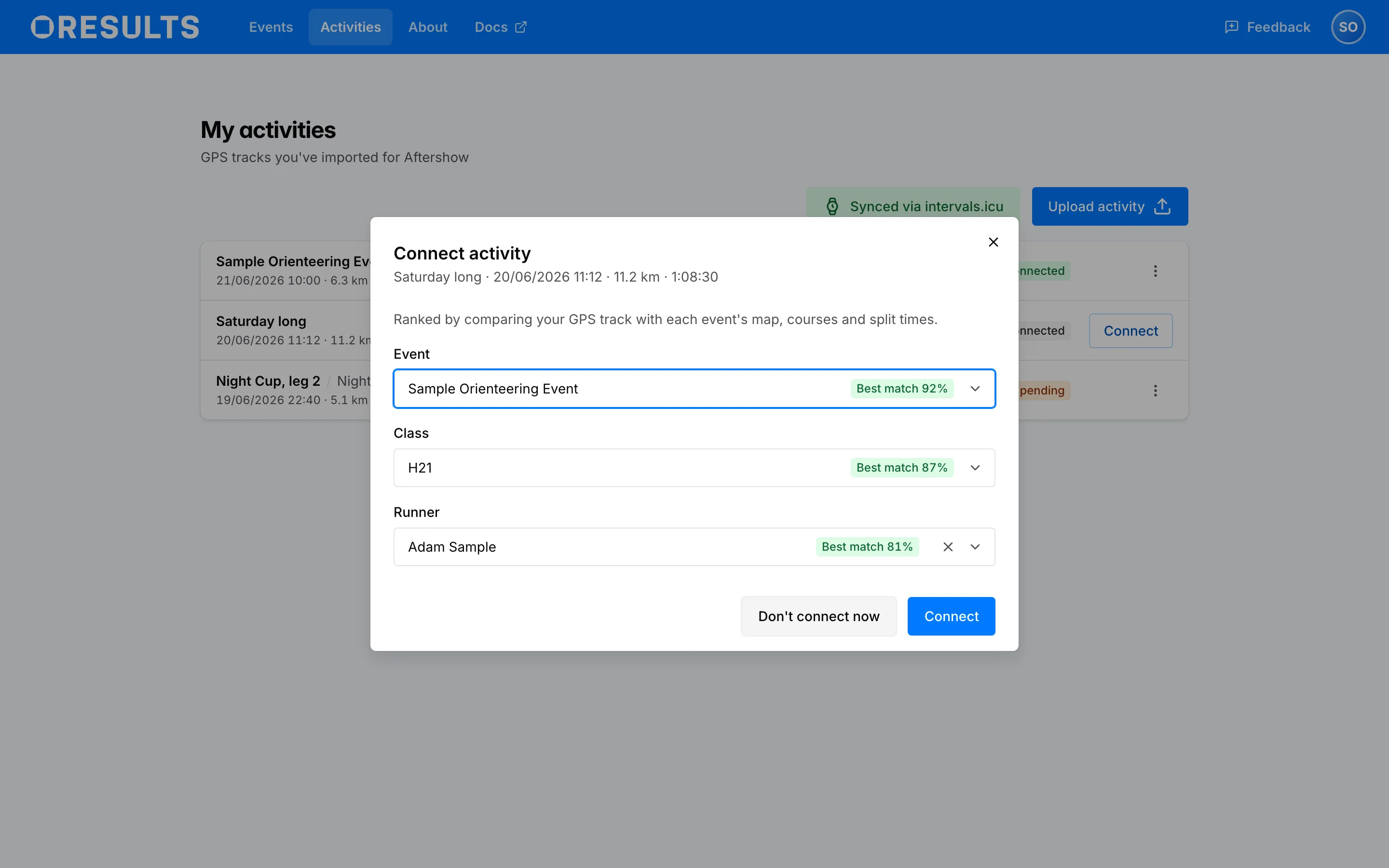
-
Pick the Event. The dialog preselects the best match. An option with no number was never scored, for example because the organizer’s courses carry no control coordinates. It can still be the right one.
-
Pick the Class.
-
Pick the Runner: your entry in the start list. If it says Failed to load runners. Try picking the class again., pick the class again.
-
Select Connect. The dialog closes and the row shows the event name. If it says that runner is already connected to another of your activities, or to a tracker, see Runner already connected under Connect the run to an event in Troubleshooting.
When the event or the class has no start list, the dialog shows The organizer hasn’t uploaded a start list for this event. or This class has no start list. in place of Runner, and the run connects to the class alone. Once the organizer uploads results, OResults adds your runner entry if your split times identify it. If it does not, select Change connection and pick the Runner.
A connected run shows replay pending until the organizer opens the Aftershow, then connected, with the event name as a link to the Aftershow. The Aftershow labels your track with your account name, not the name in the start list, unless an event organizer renames it.
Change or undo a connection
Section titled “Change or undo a connection”OResults never moves a connection you made by hand. To change any connection:
- On the run’s row, open the actions menu (⋮) and select Change connection.
- Pick the Event, Class and Runner as when connecting, then select Save changes.
To take the run out of the Aftershow:
- On the run’s row, open the actions menu (⋮) and select Disconnect.
- In Disconnect activity, select Confirm. The run leaves the event’s Aftershow, stays in your list, and its badge returns to not connected.
After a disconnect, OResults never connects that run on its own again. Select Connect on its row to connect it by hand.
Troubleshooting
Section titled “Troubleshooting”Connect the run to an event
Section titled “Connect the run to an event”No matching event: no event with public results or a public Aftershow falls in the time window around your recording. If the organizer has not published the event yet, OResults tries again when they do. If the event is already public, its date and start time may be wrong. Ask the organizer to correct them, and OResults tries again when they do.
Doesn’t match a course: your track follows none of the courses of the events in the time window, or the organizer has not uploaded courses with control coordinates yet. OResults tries again when the organizer uploads courses. To connect the run now, select Connect and pick the event, class and runner yourself.
Several possible matches: two or more classes or runners fit your track equally well, as with relay legs or two classes on one course. Select Connect, check the preselected class and runner, and select Connect.
Runner already connected: your split times point at a runner entry that already carries your other upload of this run, or a GPS tracker the organizer issued. That track is already in the Aftershow. If the other track is your own upload and you want this one instead, disconnect the other one as described in Change or undo a connection, then select Connect on this row.
Matching failed: OResults ran into an error while matching and retries on its own. To connect the run now, select Connect.
replay pending: the run is connected, but the organizer has not opened the Aftershow yet. The badge turns to connected when they do. Organizers open it as described in Publish the Aftershow.
No matching events found for this activity yet. You can connect it later, once the event’s results or replay are public.: the dialog lists only events whose results or Aftershow are public and whose date falls in the time window around your recording. Select Close and come back once the organizer has published the event. If the event is already public, its date and start time may be wrong. Ask the organizer to correct them, and OResults tries again when they do.