

Set up your club
Put your club on OResults, bring its members in and give them roles, so they can run the club’s events without being added to each event one by one.
Before you begin
Section titled “Before you begin”- To claim a Czech (ČSOS) club: your registration number, verified with ORIS, and ORIS listing you as the club’s leader. See Add your registration number on the Join your club page.
Create or claim your club
Section titled “Create or claim your club”- Open your account menu (the avatar at the top right; on a phone, Account in the menu) and choose Organizations.
- Type the club’s full name into the search under Join a club.
- Pick the result that fits:
- A club under On OResults: request to join as described in Join your club, or ask its Owner or a Manager for an invite link.
- A club under ČSOS clubs not on OResults yet: pick it. If ORIS lists you as its leader, select Create followed by the club’s name. OResults creates the club with its registry name and country and makes you its Owner. Otherwise, select Ask us to create it, which opens Feedback with the request already written. We check with the club that you are a member before we create it.
- A team or club outside the ČSOS registry: select Create organization… under Start a new organization, or Create followed by the name when the search finds nothing, and continue with the next step.
- In Create organization, check Country, Name and Shortcut. The shortcut is part of the club’s links and cannot be changed later.
If it says Shortcut must be 5–63 characters or Use lowercase letters, digits and hyphens; start and end with a letter or digit, change the shortcut to match, for example
praha-night-runners. - Select Create. OResults opens the new club, with you as its Owner. If it says shortcut already taken, pick another shortcut.
Invite members
Section titled “Invite members”-
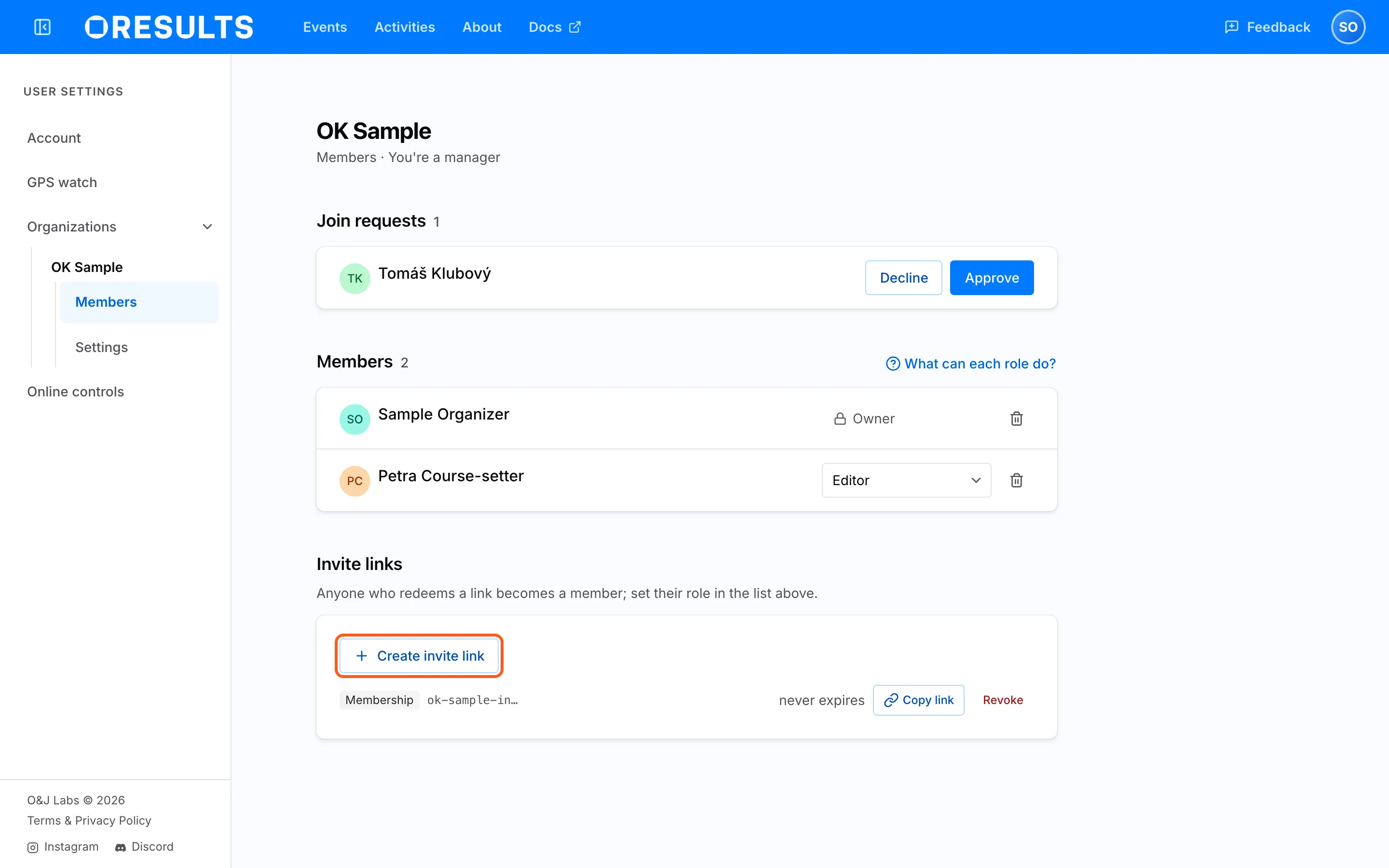
In Organizations, select the club’s row, then Members.
-
Under Invite links, select Create invite link.
-
Under Expires, pick when the link stops working, and select Create link.
-
On the new link’s line, select Copy link and send it to the people you invite.
Anyone who opens the link and signs in becomes a Member, with no role: give roles as in Give members roles. Revoke on a link’s line stops it letting anyone new in; people who already joined stay members.
Approve join requests
Section titled “Approve join requests”When someone asks to join, a red dot appears on Organizations in your account menu, with a line such as Approve 2 join requests and the club’s name. Only the club’s Owner and Managers see it.
- Open the club’s Members page. Requests are listed first, under Join requests.
- Compare each requester’s registration numbers with your club’s records. Names repeat, so check the number, not the name.
- Select Approve to make the person a member, or Decline to turn the request down. A declined person can ask again.
On a ČSOS club, Approve also confirms the requester’s registration number for your club. When ORIS registers that number to someone else, the number shows in yellow with that runner’s name. The request then offers Approve member only, which confirms nothing, and Approve and verify registration. Pick Approve member only unless you know the requester holds that number.
Give members roles
Section titled “Give members roles”- On Members, open the role list on the member’s row.
- Pick the role. It saves at once, and applies to every event of the club. Member takes the role away. What can each role do? beside the Members heading sums up each role; Club roles on the Roles and permissions page lists what each role allows.
The Owner’s row shows Owner with a lock: ownership moves only as in Hand the club over. To take someone out of the club, select the bin icon (Remove) on their row and confirm; they lose their role on every event of the club and can ask to join again.
Hand the club over
Section titled “Hand the club over”A club has one Owner. To hand the club to another member:
- Open the club’s Settings page.
- Under Ownership, select Transfer ownership….
- In the dialog, pick the new Owner. Only members are listed, not followers, each with their registration number to tell apart members who share a name.
- Select Make followed by their name and owner. The member becomes the Owner and you become a Manager.
To leave the club after that, select Leave… under Danger zone on the same page and confirm.
Troubleshooting
Section titled “Troubleshooting”Create or claim your club
Section titled “Create or claim your club”This is a ČSOS club — find it in the search and create it from there, or ask us to.: the name or shortcut in Create organization belongs to a ČSOS club, which is created only from the search. Pick the club under Join a club, then select Create followed by its name, or Ask us to create it.
No Create button on a ČSOS club, only Ask us to create it: OResults has not confirmed you as the club’s leader, because your number is not verified with ORIS or ORIS does not list you as leader. Select Ask us to create it, or have the club’s leader create it. Verification is covered under Add your registration number in the Join your club troubleshooting.
Hand the club over
Section titled “Hand the club over”You’re the only owner, so you can’t leave yet.: a club cannot be left without an Owner. Transfer ownership as in Hand the club over, then select Leave….
the last owner cannot be removed — transfer ownership to another member first: the bin icon was selected on the Owner’s row. The Owner transfers ownership first; the former Owner, now a Manager, can then be removed.
No other members yet, so there’s nobody to hand the club to. or Only members can become owner: the new Owner must be a member of the club, and Transfer ownership… stays disabled until there is one. Invite them as in Invite members, or approve their request, then transfer.