

Pay for your event
An event that ran on your own online controls owes a fee per online control, paid on the event’s Billing page. An event with no entry fees does not need to pay it. An event that rents Blueboxes owes no fee for its own online controls either, because OResults invoices the Bluebox rental separately. The summary on Billing and the checkout show the price. What it costs on the How OResults works page lists what else is free or carries a fee.
Before you begin
Section titled “Before you begin”- The Owner or Manager role on the event: Billing is not open to other roles. See Event roles on the Roles and permissions page.
- The race finished. OResults counts the online controls from the punches the event received.
Check whether you owe anything
Section titled “Check whether you owe anything”-
Open the event from Events → My events, then select Billing under Manage.
-
Read the box under Support OResults. It shows one of four states:
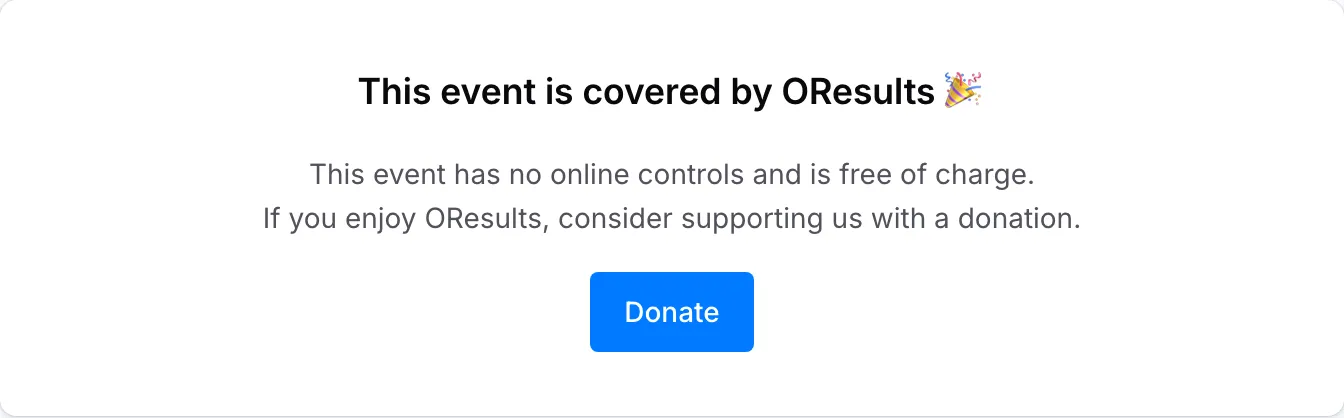
- This event is covered by OResults with This event has no online controls and is free of charge.: nothing to pay.
- Thank you for your support! with You support us by using Bluebox devices.: the event received punches from Blueboxes, and there is nothing to pay here. See Get an invoice for the rental.
- Thank you for your support! with Thank you for your contribution!: a payment is recorded for the event. It is listed under Payment History with its status.
- Your support keeps OResults running. with a summary and Pay: the event ran on your own online controls and owes the fee. Continue with Pay.
Donate, shown in the first three states, is an optional donation to OResults, not the fee.
OResults counts one online control for each code of 31 or above that received punches, none of them from a Bluebox. See Station codes on the Set up online controls page.
- On Billing, check the count in the summary against the online controls you ran.
- Select Pay. Stripe’s checkout opens.
- If the count does not match how many online controls you ran, correct the quantity at checkout.
- Complete the payment. Stripe returns you to the event’s Event & Access page.
- Open Billing again. The payment appears under Payment History, and the page thanks you instead of asking for payment.
Leaving the checkout without paying charges nothing. Pay stays on Billing until you pay.
Get an invoice
Section titled “Get an invoice”After the payment has gone through, email your billing details to [email protected]: name, address and, if you have one, VAT number.
This address is only for the fee paid on Billing. Rented Blueboxes are invoiced separately, as described in Rent Blueboxes on the Get Blueboxes page.
Troubleshooting
Section titled “Troubleshooting”Back on Event & Access after the checkout, with no confirmation: Stripe returns every checkout to Event & Access, whether you paid or not. Open Billing: a payment that went through is listed under Payment History. If Pay is still there and nothing is listed, the checkout was not completed. Select Pay again.