

Upload maps and courses
The Aftershow draws its tracks on your map and overprints the courses on it, and a class gets splits only when it has a course. Upload both on the event’s File upload page, then check the healthcheck beside the dropzone.
Before you begin
Section titled “Before you begin”- The start list uploaded, so the classes exist when the courses arrive. See Upload start lists and results.
- The map, and a course file with control coordinates, in a format listed under Formats on the Event files page.
Upload the map
Section titled “Upload the map”-
Open the event from Events → My events, then select File upload under Manage.
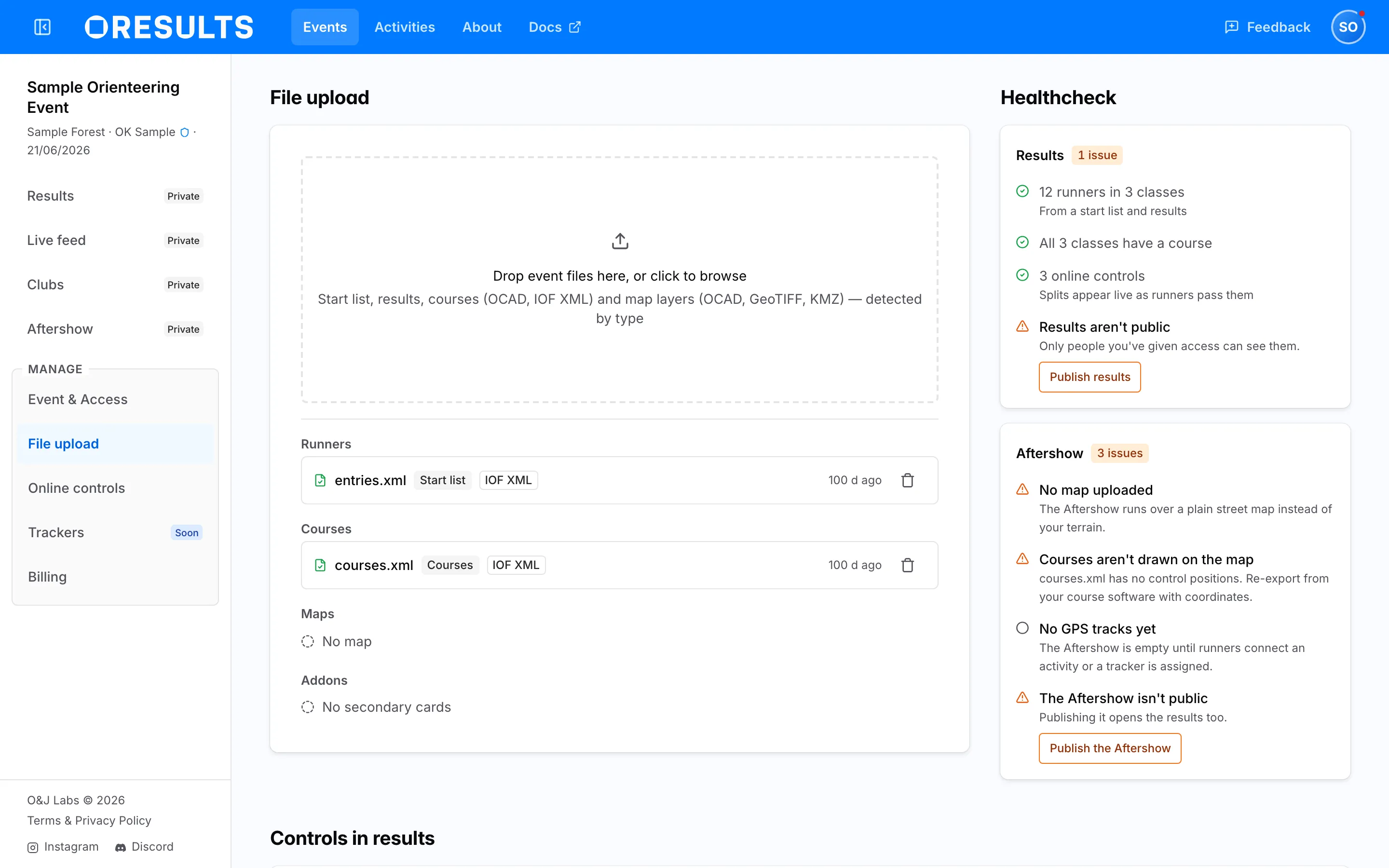
- Drop every map layer onto Drop event files here, or click to browse, together with the course-setting project.
- Select Upload n files under the list. The status line reads Rendering the map, usually for under a minute. If it says The base map is not georeferenced, set the real-world coordinates of the map in OCAD, or export a georeferenced GeoTIFF, and upload again. If it says Only one OCAD course-setting project can be uploaded at a time, remove all but one course project from the list.
- Under Maps, select the Base map thumbnail and check the full-size preview: the terrain, the extent, nothing missing. For an amber line under Rendered from … layers, see Troubleshooting.
Upload the courses
Section titled “Upload the courses”If you dropped the OCAD course-setting project with the map, it already brought the courses: continue with Match classes to courses.
- Export the courses from your course-setting software with control coordinates.
- On File upload, drop the course file.
- Select Upload 1 file. If a class with runners has no course, or a course has no runners, Match classes to courses opens: continue with Match classes to courses. If it says This event’s courses carry control coordinates, so they were kept, the file had no coordinates and only its online controls were applied. To replace the courses with this file anyway, delete the courses first, then upload it again.
- Under Courses, check the file’s line. If it shows No control coordinates, re-export the courses with coordinates and upload them again; for an OCAD course-setting project, drop it again together with the map layers. If it shows Online controls only, upload the full course file too.
Match classes to courses
Section titled “Match classes to courses”- Wait for Match classes to courses to open after a course upload, or open it with the Match classes to courses button beside Classes and courses, further down File upload.
- Expand the green line … already match a course and check the automatic matches.
- For each class in the orange … need a manual check box, pick the course its runners ran from Pick a course. One course may serve several classes; courses another class already runs are listed under Already used by another class. A line Matched on the name alone means OResults guessed from similar names: check it.
- For a course nobody runs, such as an all-controls course, select Don’t import, or keep it as a class of its own. Import it as its own class brings a left-out course back.
- Read the line above the buttons: it names classes still left with runners and no course. Select Apply, or Apply and re-render for an OCAD course-setting project, which redraws the overprint. If it says The mapping could not be applied, the courses stay as they were: select Apply again, or upload the course file again.
Check the healthcheck
Section titled “Check the healthcheck”- On File upload, read the Results and Aftershow cards under Healthcheck. Healthcheck lines on the Event files page explains each line.
- Select the button on each line that has one. To pick online controls, see Set up online controls; to publish, see Control who sees your event.
Troubleshooting
Section titled “Troubleshooting”Upload the map
Section titled “Upload the map”Lost contact while the server was working — it may have finished. Reload to check.: the connection dropped after the files had arrived, and the server keeps rendering. Select Reload and look under Maps before uploading again.
Unrecognized format — expected an IOF XML start list, result list or courses, an OCAD map or course project, …: the file is an OCAD file saved in version 8 or older, or a KMZ that contains no .kml file. Re-save the OCAD file in OCAD 9 or later, or export a GeoTIFF or a new KMZ.
An old or unwanted layer is still in the base map: an upload adds layers or replaces a layer of the same filename, and a single layer cannot be deleted. Select the trash icon on the Maps set, Confirm in Delete maps, then drop the layers you keep together with the course-setting project.
… map files uploaded with no course file to order them; using the latest alone: several OCAD layers rendered without a course-setting project. Drop the layers again together with the course project.
map ‘…’ isn’t referenced by the course file; not composited: the course project’s background maps do not name that file. Add the file as a background map in the course project, or rename it to the name the course project uses, and upload both again.
the course file references a background map ‘…’ that isn’t uploaded: a layer the course project uses is missing. Upload it under the filename the course project names.
… extra map file(s) ignored; only the latest picture base map is used: the event holds more than one GeoTIFF or KMZ, and only the latest is drawn. Delete the maps and upload the one picture you want.
the course file’s print area excludes … placed control(s); rendering the full map extent: the course project’s print area leaves out some controls, so the map is not cropped. Set a print area that covers every control in OCAD and upload the course project again.
real-world coordinates are switched off in …: OResults placed the map with coordinates OCAD marks as switched off. Open the Aftershow and check the map lands on the right terrain; if not, switch on real-world coordinates in OCAD (Map > Set Scale and Coordinate System) and upload again.
Upload the courses
Section titled “Upload the courses”Courses aren’t drawn on the map: the course file has no control positions. Fix it as in Upload the courses.
Match classes to courses
Section titled “Match classes to courses”… has no course or … have no course in the healthcheck: those runners get a time but no splits. Select Match classes to courses on the line and pick their course.
No Match classes to courses button: the event has no course file whose courses can be matched. Upload the course file; a file with only online controls has no courses to match.
A course you left out is a class again after a new upload: uploading the course file again keeps your matches but not the courses you left out. Open Match classes to courses and select Don’t import on it again.