

Organize an event step by step
Run your event on OResults from creating it to opening the Aftershow. Results online needs only the first section; add live splits and the Aftershow when your event uses them.
Before you begin
Section titled “Before you begin”- An OResults account. Getting started covers signing up.
- To create the event in your club: a club role that creates events, as listed under Club roles on the Roles and permissions page. If your club is not on OResults yet, see Set up your club.
The minimum: results online
Section titled “The minimum: results online”-
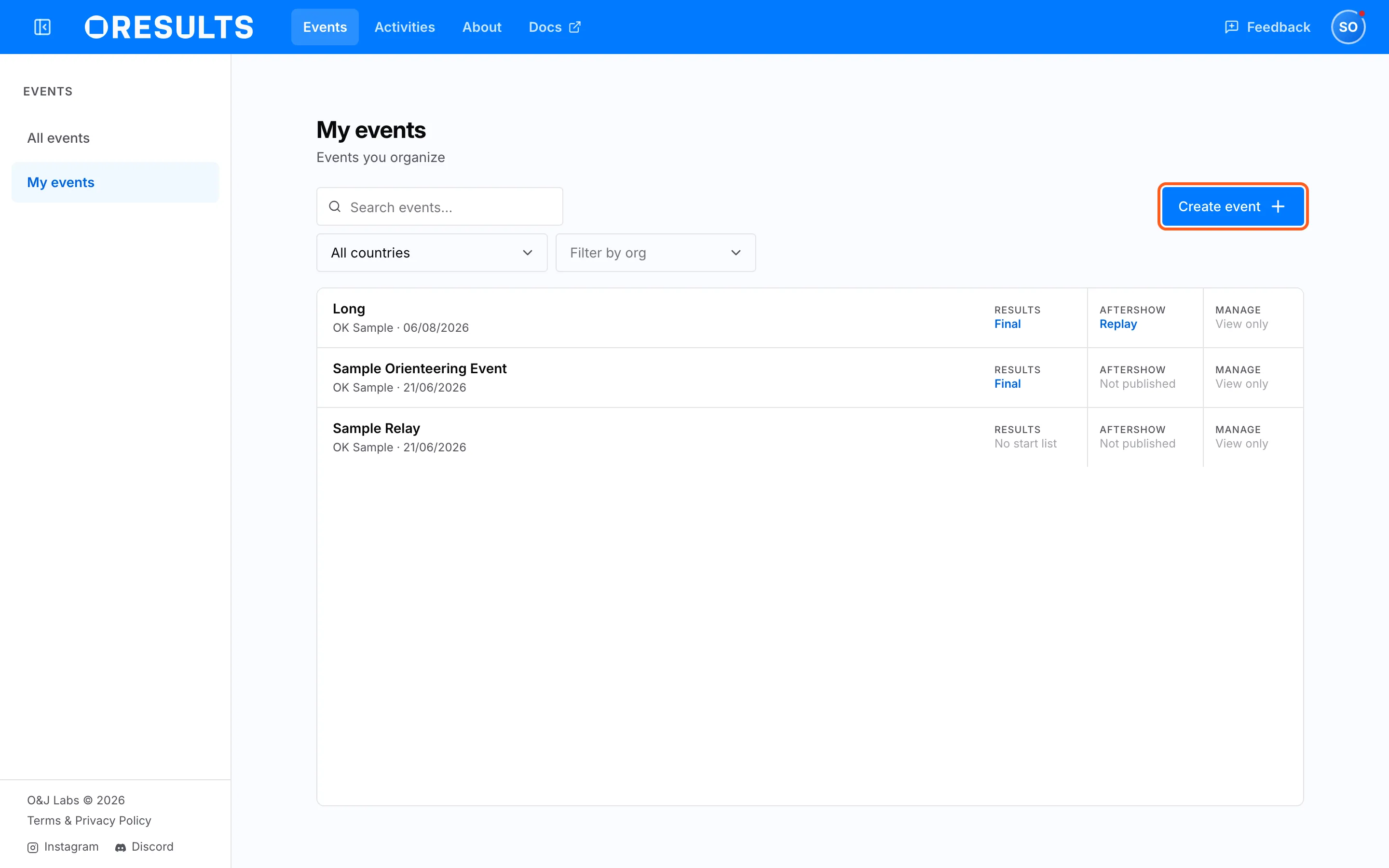
Open Events → My events and select Create event. The button is on My events only, not on All events.
-
In the New Event dialog, fill in Event name, Place, Country and Start date. Then check these fields:
- Organizer: the club the event belongs to, so the club’s roles apply to it. The list offers each club where you can create events; leaving it at No organization creates the event without a club. To name a host that is not on OResults, or co-organizers such as
CHA + LBE, type the name and select Use “…” (no organization). You cannot change the club after Create; an event without a club can be connected to one later. The event shows the organizer’s name, with a shield badge when it is a club on OResults, and you can edit the name later under Event info. - Upcoming ORIS races: when the club is a Czech club, the dialog lists the club’s races from today on, as ORIS, the Czech orienteering registry, publishes them. Selecting a race fills in Event name, Place, Country, Timezone, GPS latitude, GPS longitude and the start date and time from ORIS, and links the event to the race, so that the start list and results later load from ORIS with one click: see Load from ORIS on the Upload start lists and results page. A race marked already on OResults has an event in your club. The × next to the selected race unlinks it; after Create, the link cannot be added or removed.
- Timezone: the zone where the event takes place. It starts at your computer’s timezone.
- Sub-second finish: turn it on when your timing records finish times finer than a whole second. The results then show each finish time with tenths of a second.
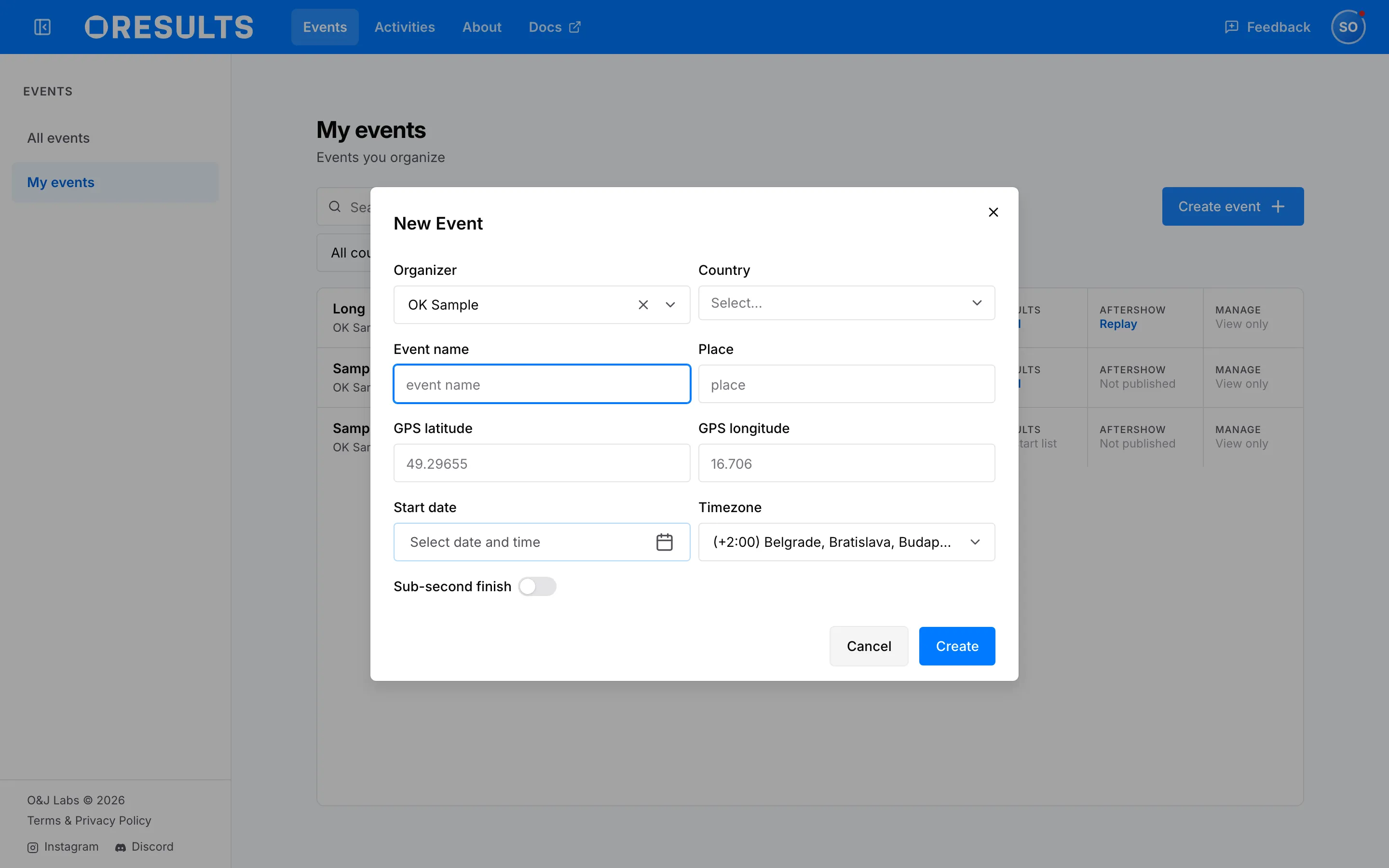
- Organizer: the club the event belongs to, so the club’s roles apply to it. The list offers each club where you can create events; leaving it at No organization creates the event without a club. To name a host that is not on OResults, or co-organizers such as
-
Select Create. OResults opens the new event’s Event & Access page. To change the name, place, country, start date, timezone or Sub-second finish later, or the Organizer, use Event info there. Delete event, at the bottom of Event info, deletes the event with everything in it and cannot be undone; only the event’s Owner and Managers can delete it.
-
Get the start list and results into the event, from your timing software or by hand: see Upload start lists and results.
-
Share the event. Choose what the public can see and hand out the event link, as described in Control who sees your event.
Live splits: online controls
Section titled “Live splits: online controls”Online controls send punches from chosen controls in the forest to the live results while the race runs.
- Get the devices: rent Blueboxes or use your own online controls, as described in Get Blueboxes. A phone can also serve as one: see Use a phone as an online control.
- Upload the courses, as described in Upload maps and courses. You pick the online controls from the event’s courses.
- Configure the SI stations, select the online controls and link the devices to the event: see Set up online controls.
- Place each Bluebox or phone at its control: see Place Blueboxes.
- During the race, watch the devices send punches: see Monitor online controls on race day.
- After the race, return rented Blueboxes: see Return them on the Get Blueboxes page.
After the race: the Aftershow
Section titled “After the race: the Aftershow”The Aftershow replays the runners’ GPS tracks on the event’s map.
- Upload the map and courses, and check the healthcheck: see Upload maps and courses.
- Open the Aftershow to the public, now or at a set time: see Publish the Aftershow.
Runners connect their own GPS tracks: see Put your run in the Aftershow.
Payment
Section titled “Payment”Check whether the event owes a fee and pay it: see Pay for your event. What carries a fee is under What it costs on the How OResults works page.
Troubleshooting
Section titled “Troubleshooting”Create the event
Section titled “Create the event”No ORIS races are listed in the New Event dialog: the club under Organizer is not a Czech club registered with ORIS, ORIS lists no race for the club from today on, or ORIS did not answer. Create the event by hand; the start list and results then arrive from your timing software or by hand, as Upload start lists and results describes.
Invalid latitude value., Invalid longitude value., lat must be less than or equal to 90 or long must be less than or equal to 180: the coordinate is not in decimal degrees, for example it uses a decimal comma or degrees and minutes. Type decimal degrees with a period, as in the placeholder 49.29655, or clear the field: both GPS fields are optional.
No organizations yet — create one in Settings. under Organizer: you hold no club role that creates events. If your club is on OResults, ask its Manager for that role, as listed under Club roles on the Roles and permissions page. If it is not, create it as described in Set up your club. To go ahead now, create the event with No organization and connect it later, as described in Connect the event to a club on the Control who sees your event page.