

Use a phone as an online control
Run an online control on an Android phone with a SPORTident SRR dongle plugged in. The Bluebox Mobile app reads each punch the SRR station sends to the dongle and forwards it to OResults over the phone’s internet connection.
Before you begin
Section titled “Before you begin”- The OResults account that created the event. Only its devices can be linked to the event.
- An Android phone with Android 7.0 or newer and an internet connection at the control. A phone with an older Android can install Bluebox Mobile APK (for older Android) from Online controls in your account menu. That app is no longer maintained, and its screens may differ from this guide.
- A USB adapter that fits the phone’s port (USB-C or micro USB) and carries data, not only power.
- A SPORTident SRR dongle.
- An SRR station at the control, configured as Configure the SI stations on the Set up online controls page describes.
- The Bluebox Mobile app, installed from Bluebox Mobile on Google Play.
Create the device
Section titled “Create the device”Create one device per phone, so each phone has its own row in the event’s Status table.
- Open your account menu (the avatar at the top right; on a phone, Account in the menu) and choose Online controls.
- Next to Bring your own device, select Create new. The Connect mobile app dialog opens.
- Enter a Name you will recognize on race day, such as the control code.
- Select Save. The device appears in the Bring your own device table.
To rename the device later, select its name in the table. The Edit mobile name dialog opens.
Pair the app
Section titled “Pair the app”-
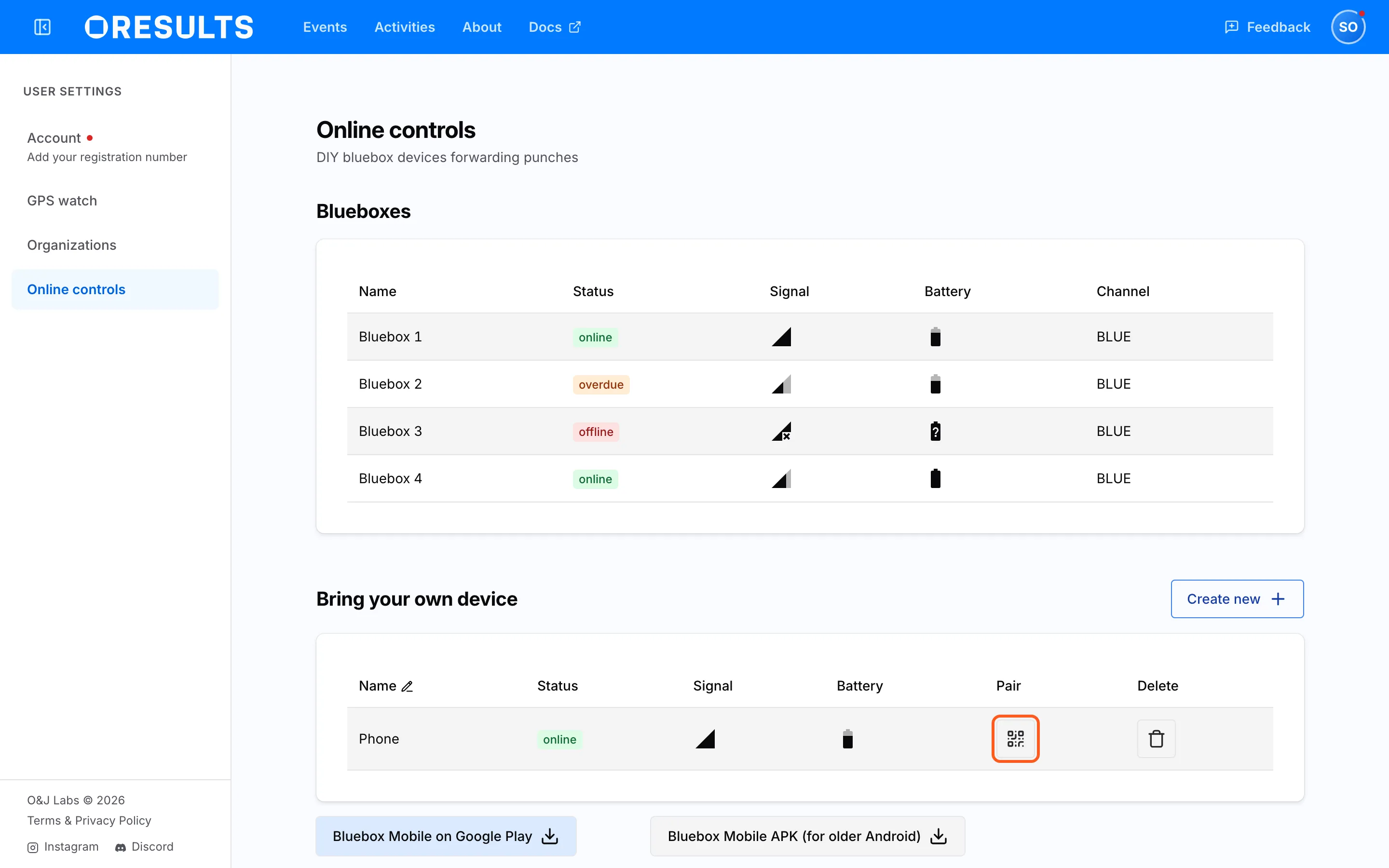
In the Bring your own device table, select the QR code button (Show QR code) in the Pair column of the device’s row. The Pair Bluebox Mobile dialog opens with a QR code and the device token.
-
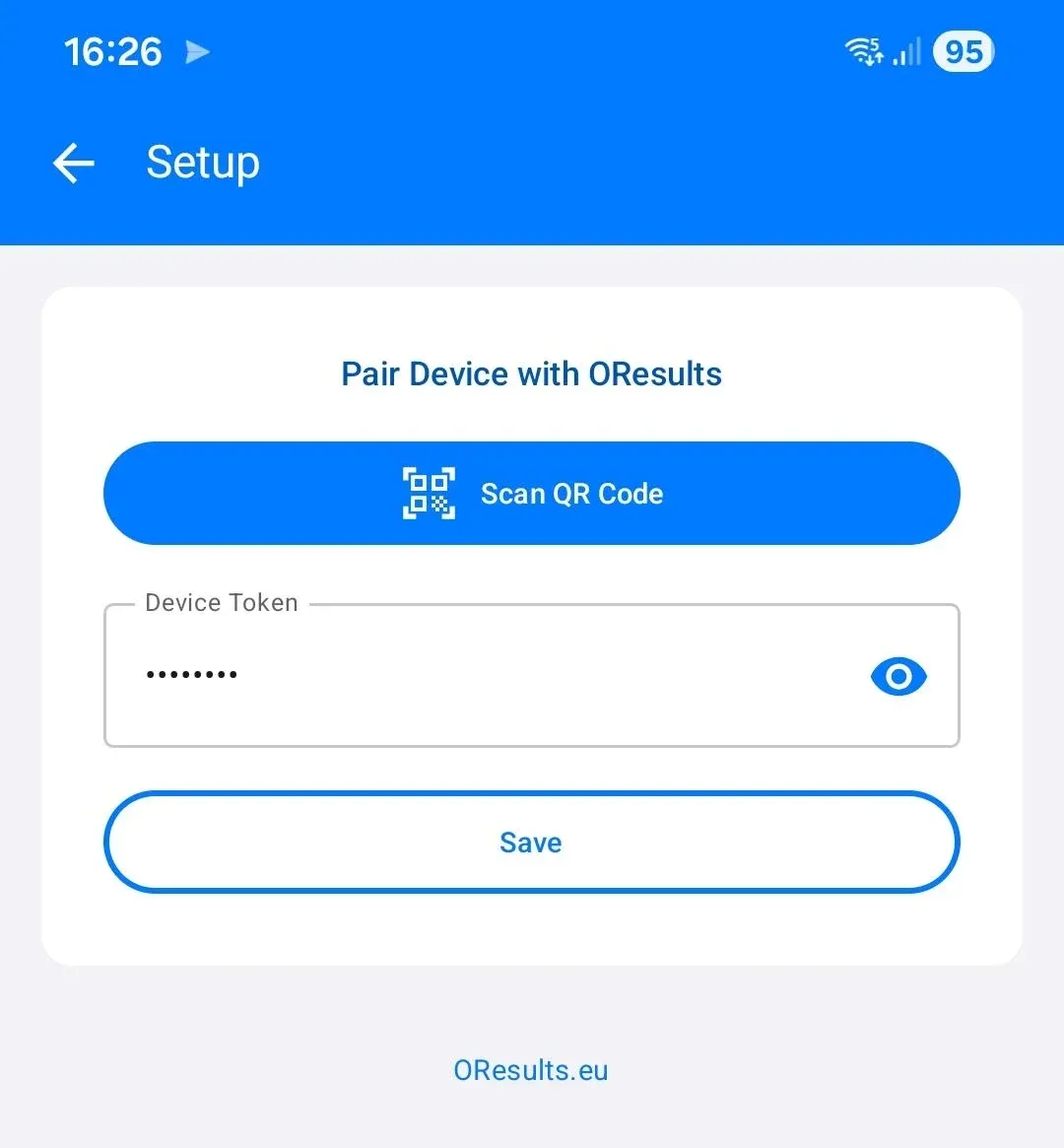
On the phone, open Bluebox Mobile and tap the gear icon at the top right. The Setup screen opens.
-
Tap Scan QR Code and point the camera at the QR code in the dialog. The app saves the token, says Device token added successfully and returns to the dashboard. If it says Camera permission is required to scan the QR code., tap Open Settings and allow Bluebox Mobile to use the camera.
Connect the dongle
Section titled “Connect the dongle”There is no start button. Sending starts when the dongle connects and stops a few seconds after you unplug it.
-
Plug the dongle into the adapter and the adapter into the phone.
-
When Android asks, allow Bluebox Mobile to access the USB device. If Android offers to always open Bluebox Mobile for this device, accept, so the app opens again on its own when the dongle reconnects.
-
On Android 13 and newer, allow Bluebox Mobile to send notifications when asked. If it says Notification permission required to start Live Session, allow notifications for Bluebox Mobile in the phone’s settings, then unplug the dongle and plug it in again.
-
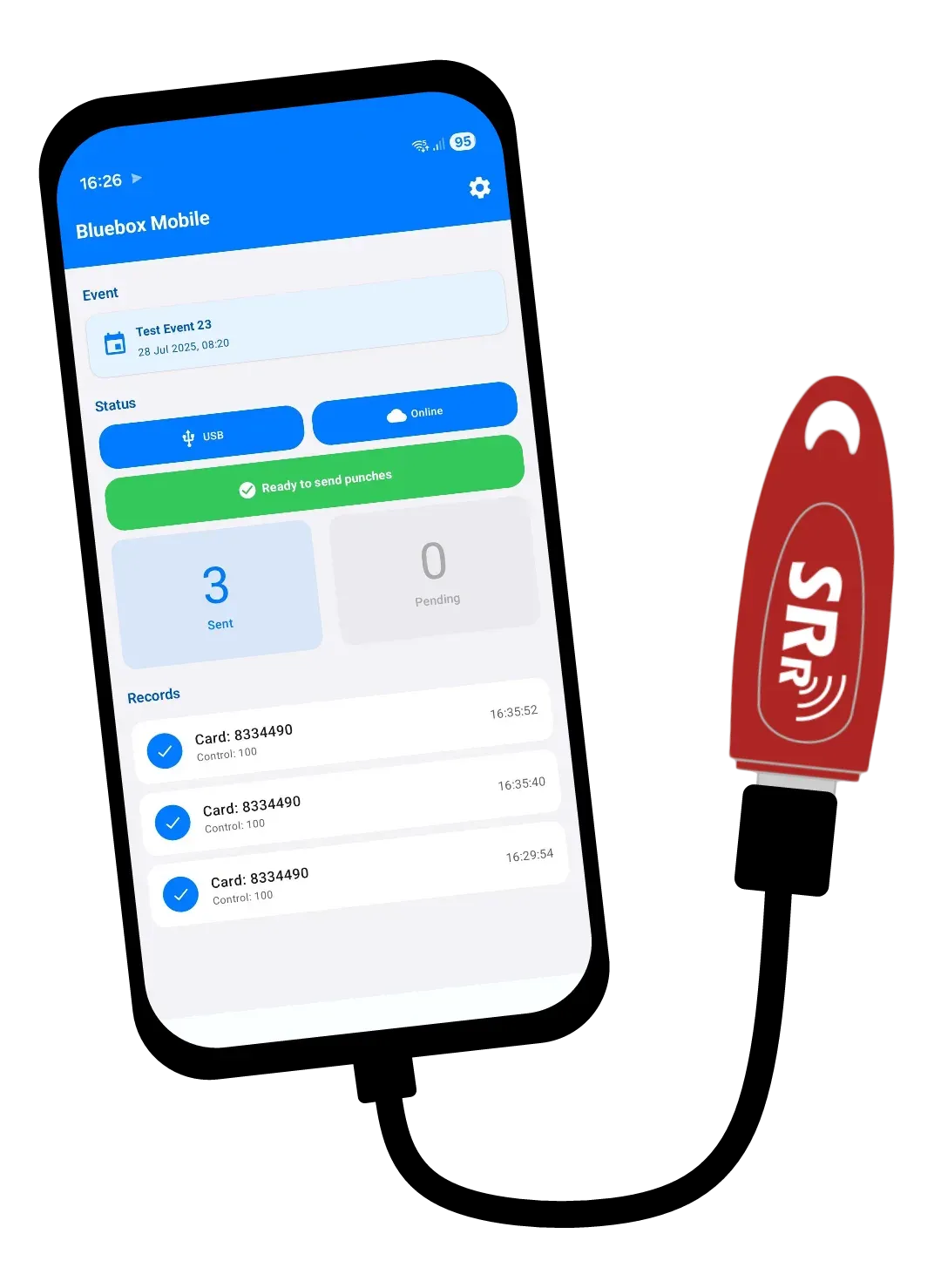
Check the dashboard: USB and Online are blue.
Keep the app running
Section titled “Keep the app running”While it sends, the app runs in the background with a Bluebox Mobile notification showing the Sent and Pending counts, and it keeps sending with the screen off.
- In the phone’s settings, set the battery usage of Bluebox Mobile to unrestricted. Otherwise Android can stop the app in the background to save power, and the device goes offline.
- If the phone has an autostart or background-activity setting of its own, allow it for Bluebox Mobile.
Link the device to your event
Section titled “Link the device to your event”- Link the device to your event as Link the devices to the event on the Set up online controls page describes. The app’s Event section then shows the event’s name and date, and Ready to send punches turns green.
- Punch a card at the SRR station. The punch appears under Records, and Sent counts it once OResults has received it.
Punches a phone sends count toward the fee for your own online controls. Pay for your event says how OResults counts them and when you owe it.
Troubleshooting
Section titled “Troubleshooting”Pair the app
Section titled “Pair the app”The QR code does not scan: the phone’s camera cannot read the code from the screen. Enter the token by hand instead. In the Pair Bluebox Mobile dialog, select the token to copy it. On the app’s Setup screen, type or paste it into Device Token and tap Save.
Send punches
Section titled “Send punches”When punches do not arrive, the chips under Status and the banner under Event say why:
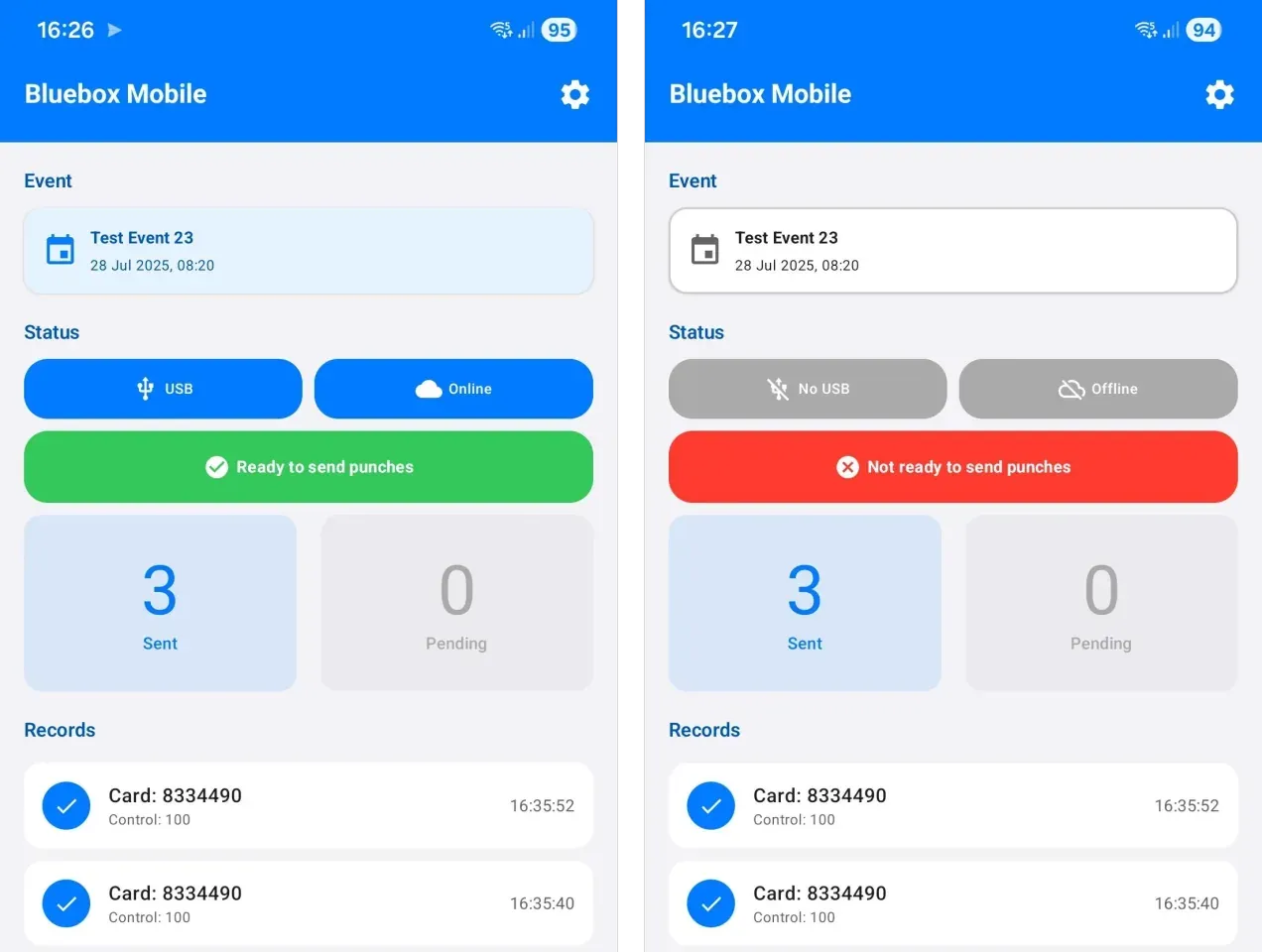
No USB: the app has no connection to the dongle. Reseat the dongle and the adapter, allow the USB access when Android asks, and check that the adapter carries data. Offline also shows whenever the dongle is disconnected, so fix No USB first.
Offline, with USB connected: the app is not sending to OResults. If the Event section shows Token invalid, fix that first. If you denied notifications, allow them for Bluebox Mobile in the phone’s settings, then unplug the dongle and plug it in again. Otherwise check the phone’s internet connection, then the battery setting under Keep the app running. Punches received meanwhile wait under Pending, and the app sends them once it is back online.
Device not paired: the app has no device token. Tap the banner and pair the app as Pair the app describes.
Token invalid: the token on the phone matches no device in OResults, because it was mistyped or the device was deleted. Tap the banner and pair the app again with the token of a device listed under Online controls in your account menu.
Event unassigned: the device is not linked to any event. Tap the banner to open your events in OResults, then link the device as Link the device to your event describes. Punches received meanwhile wait under Pending, and the app sends them once the device is linked.