

Results and live views
What each part of the event list and an event’s Results, Live feed and Clubs views shows. The Aftershow has its own page, Aftershow.
Event list
Section titled “Event list”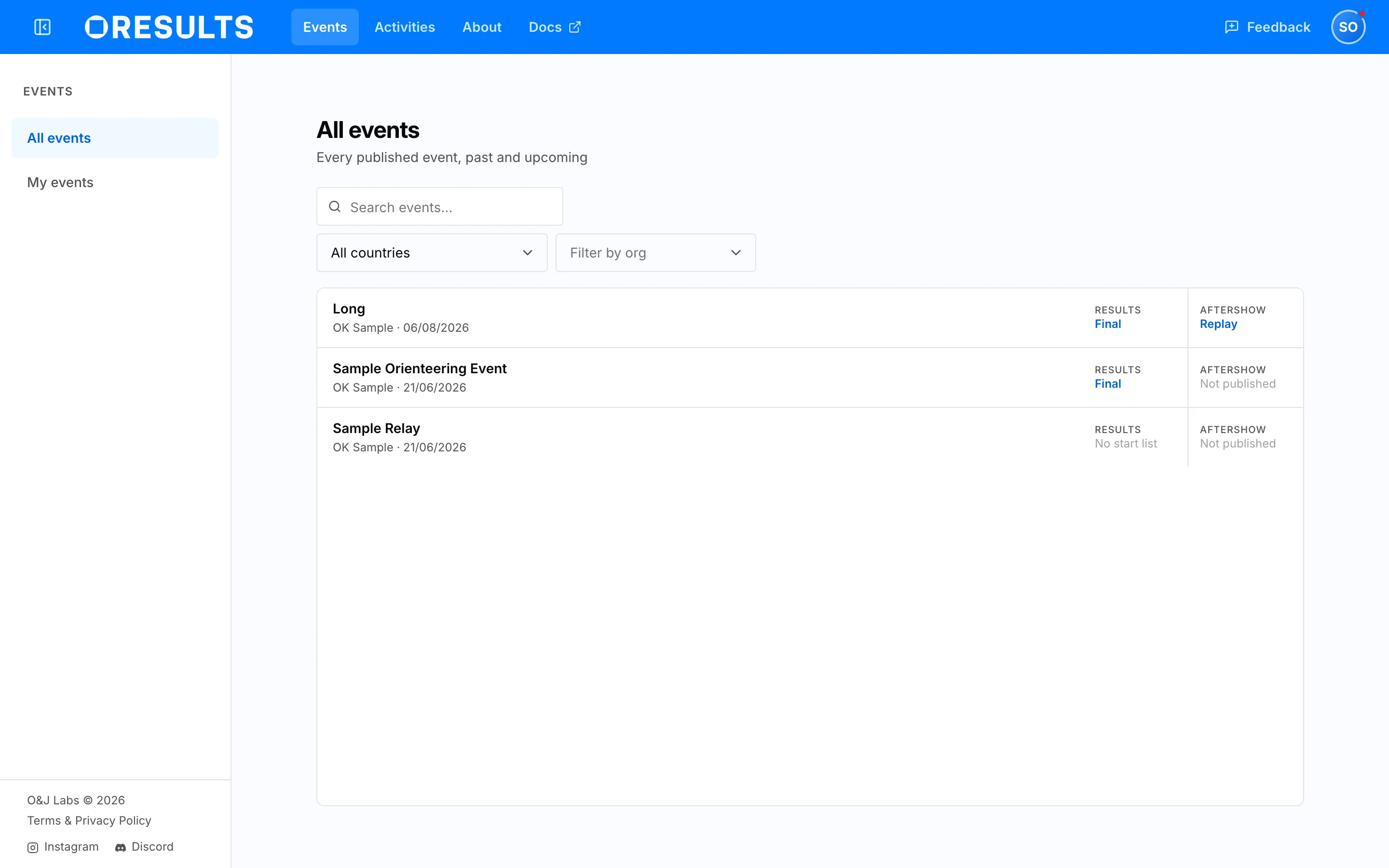
| List | Holds |
|---|---|
| All events | Every published event, past and upcoming, newest first. |
| My events | The events you organize or that were shared with you, including those not listed publicly. Shown only while you are logged in. |
| Home page Live, Recent, Upcoming | Events of today, of the last 7 days and of the next 3 days, grouped by day. |
| Filter | Does |
|---|---|
| Search events… | Matches the event’s name, place, organizer and date. Starts empty each time you open the list. |
| All countries | Offers only the countries of events in the list. Your browser remembers the choice. |
| Filter by org | Shows only events of the organizations you pick among your own. Logged in only; your browser remembers the choice. |
No events match your filters can come from a country or organization your browser remembered from an earlier visit. Clear filters resets the search, the country and the organization.
Each row shows a badge per view, coloured by its state: blue opens the view, green is a race running now, orange opens later, grey has nothing to open yet.
| Region | State | Means |
|---|---|---|
| Results | Start list | The start list is loaded; no result or punch has arrived yet. |
| Live (pulsing dot) | Results or punches have arrived and the event’s end time has not passed. | |
| Final | Results or punches have arrived and the event’s end time has passed. | |
| No start list | The organizer has not uploaded a start list yet. | |
| Aftershow | Replay | The Aftershow is open; the region opens it. |
| at 20:00, on 7 Aug | The Aftershow opens at that time (today) or on that day. Nothing to open until then. | |
| Not published | The organizer has not published the Aftershow or scheduled it. | |
| Manage (My events only) | Edit | You can edit the event; the region opens its editor. |
| View only | The event was shared with you read-only. |
In the event’s own menu, No start list and Private can appear beside Results, Live feed and Clubs. Private means the public cannot open that view yet; you can, because you were given access. The labels beside Aftershow are under Access on the Aftershow page. The organizer decides what the public can open; see Choose what the public can see on the Control who sees your event page.
Results
Section titled “Results”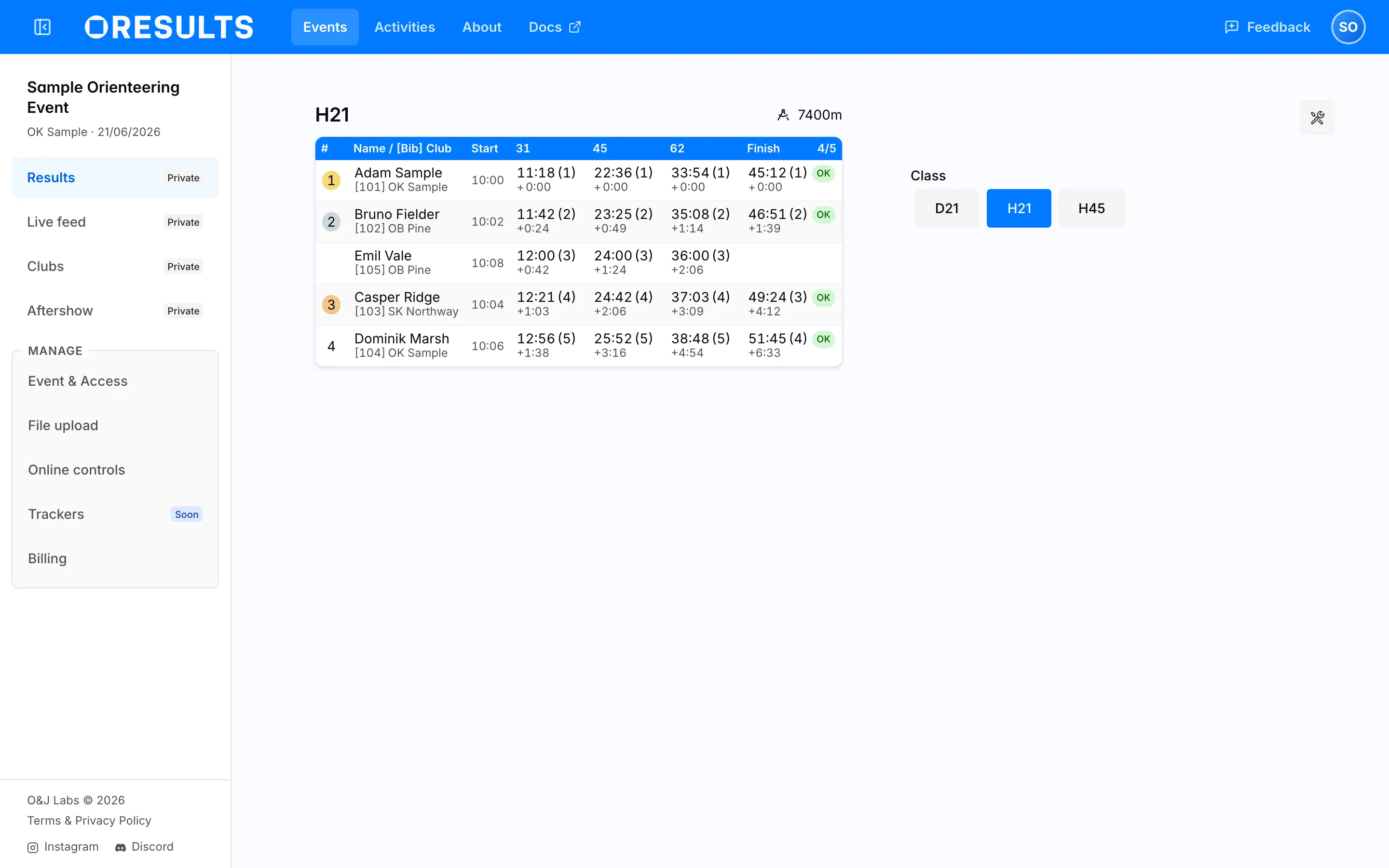
Results shows one class at a time. On a narrow screen, the button with the class name at the bottom right opens the class list. In a relay, pick the class, then the leg number under it.
| Column | Holds |
|---|---|
| # | The place in the class. A star instead of a place marks a class run without timing, which shows no finish time. In a relay leg, a green up or red down arrow with a number shows the places the team gained or lost against the previous leg. |
| Name, Club | The runner, and their club or relay team. Selecting the club opens it in Clubs. |
| Bib | The bib number. Shown only when a runner of the class has one. |
| Start | The start time, in the event’s time zone. Not shown on relay legs after the first. |
| One per online control | The split at that control. See Live splits. |
| Finish | The finish time and the status badge, as listed under Status badges. The header counts the runners who have finished or been given a status other than OK, out of all runners in the class (4/5). |
When the table does not fit the screen, one Name / [Bib] Club column replaces the name, bib and club columns.
A yellow row has a punch from the last 2 minutes; that punch’s time is bold.
| Message | Means |
|---|---|
| Start list not yet published | The event has no classes or runners yet. |
| This class has no runners | The class exists but nobody is entered in it. |
Status badges
Section titled “Status badges”A badge in the Finish cell gives the runner’s status: green for OK, red for the rest. A runner without one of these statuses, such as one still on the course, has no badge. A runner with a red badge gets no place.
| Badge | Means |
|---|---|
OK |
Valid run |
MP |
Missing punch |
DSQ |
Disqualified |
DNF |
Did not finish |
DNS |
Did not start, or did not enter |
NC |
Not competing |
OT |
Over the time limit |
SW |
Sporting withdrawal |
Live splits
Section titled “Live splits”The control columns are the controls the organizer selected as online controls, plus the finish; the other controls of the course have no column. See Select the online controls on the Set up online controls page.
| Part | Shows |
|---|---|
| Column header | The control’s name, else its distance into the course (2.3km), else its code. A code the course visits twice carries a small number for the visit. Hover a name or distance to see the code. |
| Top line of a cell | The time from the runner’s start to that punch, and in parentheses their place at that control. In a relay, the time runs from the team’s first-leg start. |
| Bottom line of a cell | The gap to the fastest runner at that control; the fastest shows +0:00 once someone slower has punched. |
| Gray time in the next cell | While the race runs, the runner’s time so far, in the column of the control they are heading for. |
Selecting a control’s header orders the class by place at that control, and an arrow marks the header. Finish orders by finish place, without an arrow. Select the same header again to go back to the class order.
Live feed
Section titled “Live feed”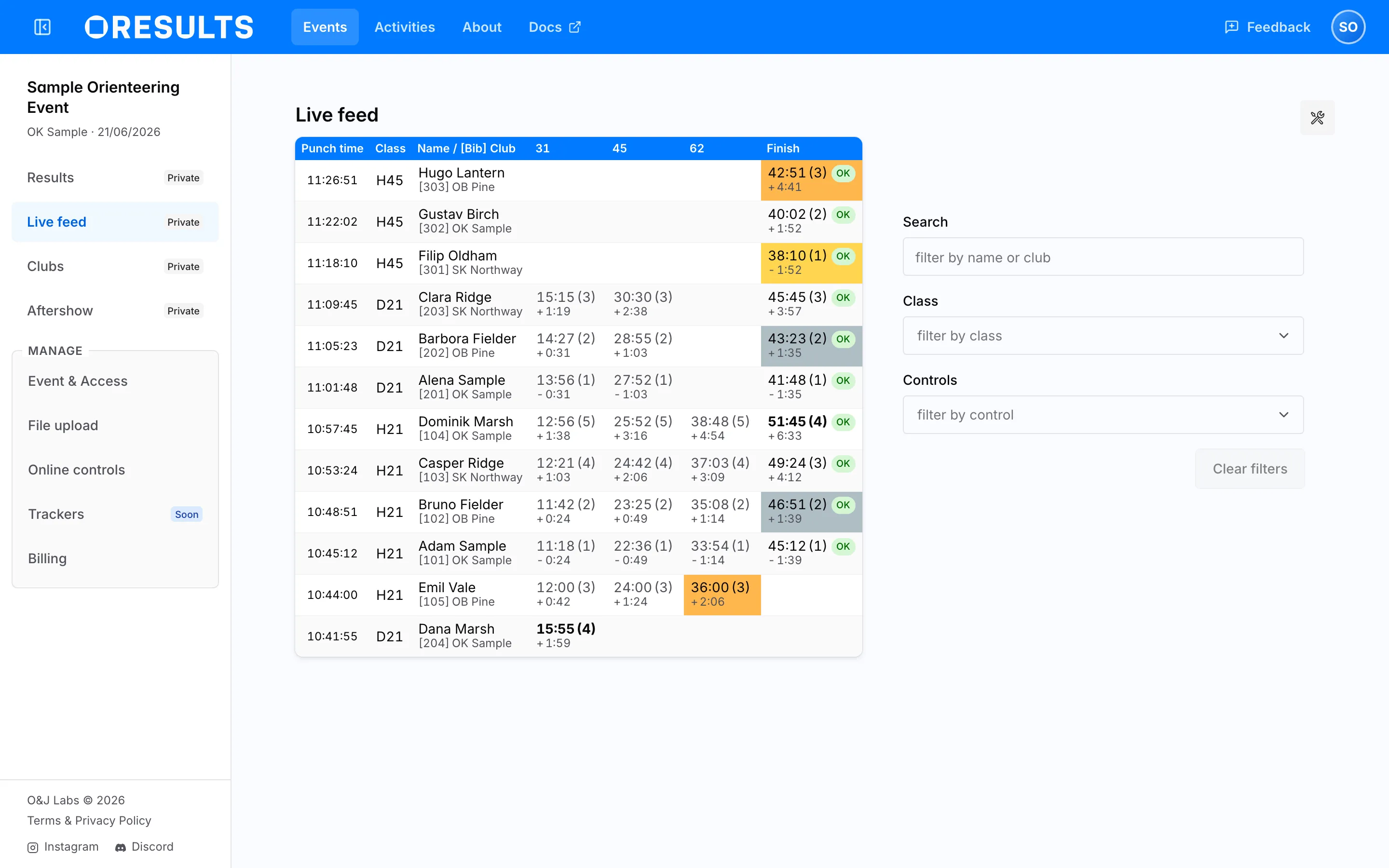
Live feed shows every class at once, one row per runner, with the latest punch on top.
| Column | Holds |
|---|---|
| Punch time | The time of day of the runner’s latest punch, in the event’s time zone. A colored bar marks it for 30 seconds. |
| Class | The runner’s class, and leg in a relay. Selecting it opens that class in Results. |
| Name, Club, Bib | As in Results. |
| One per online control | Every online control of the classes shown. Selecting a code filters the feed to that control. |
| Finish | The finish time and the status badge, as listed under Status badges. Selecting it filters the feed to finishes. |
| Cell | Means |
|---|---|
| Time (place) | The time from the runner’s own start, and their place at that control. (—) replaces the place for a runner whose status is not OK. |
+ gap |
Behind the fastest runner at that control. |
- gap |
The runner is fastest there; the gap is their lead over the second. |
| Bold time | The runner is fourth to sixth at that control. |
| Faded cell | An earlier punch of the runner. |
| Filter | Does |
|---|---|
| Search | Matches the runner’s name, club or team. On a narrow screen it is the Search by name or club box; the filter icon beside it opens the other filters. |
| Class | Shows only the classes you pick. |
| Controls | Shows only runners who punched one of the picked controls, and hides the other control columns; FINISH stands for the finish. |
| Clear filters | Removes all three. |
The filters are part of the address, so a copied link opens the feed filtered the same way. The feed shows 100 runners; load more adds the next 100. If it shows No results for this filter, no runner matches; Clear filters removes them.
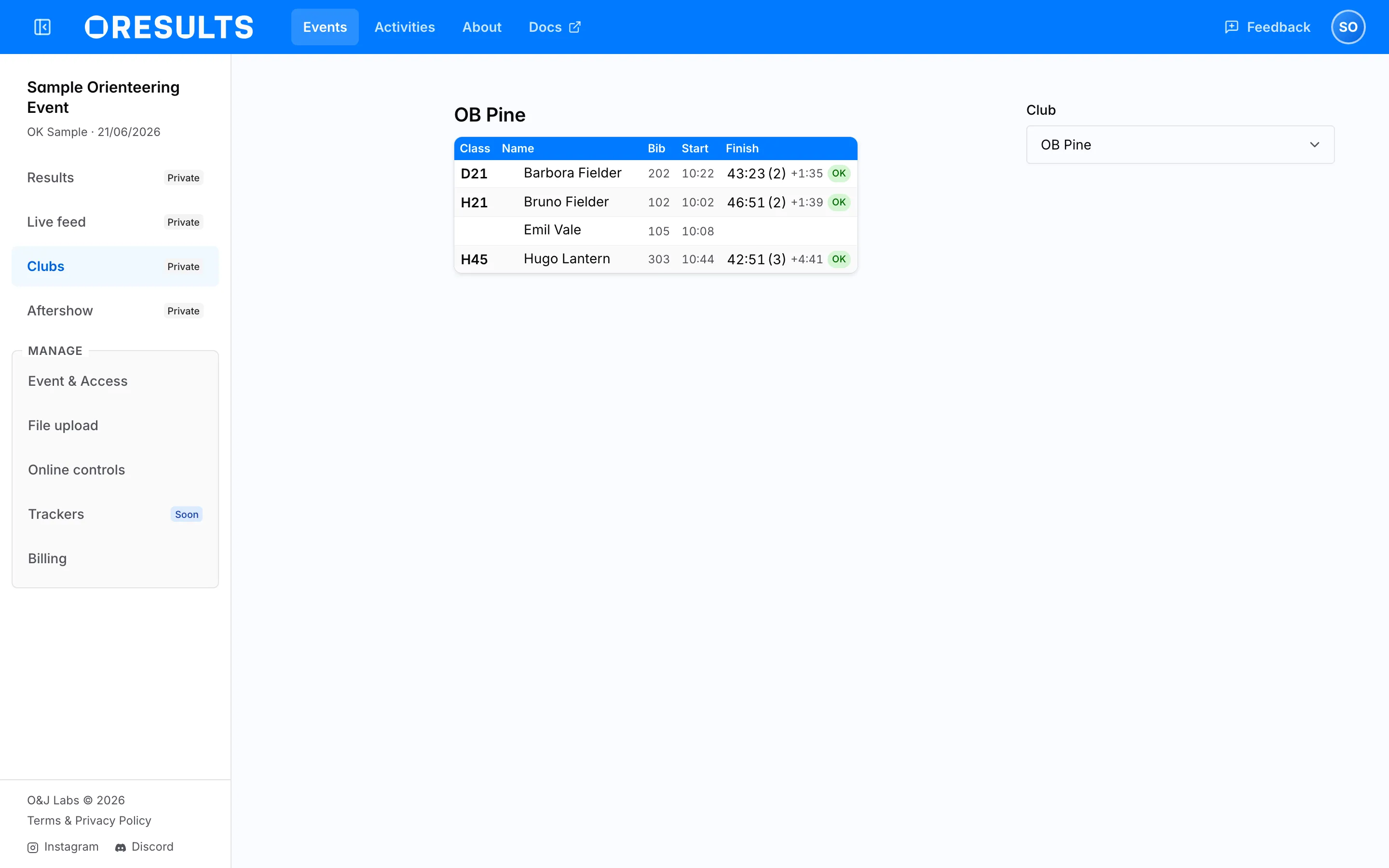
Clubs lists the runners of the club picked in Club; each class name opens that class in Results.
On a wide screen, the tools button at the top right of Results and Live feed offers:
| Tool | Does |
|---|---|
| presentation mode | Opens a results board for a screen in the arena, in a new browser tab. |
| open table in popup | Opens the current table in a separate window without menus, which keeps updating. |
| collapse class picker | Hides the class list or the filter panel. expand class picker brings the panel back. |
The presentation board shows runners who have finished, and runners who have punched or are heading for an online control ticked in Presentation settings (the gear icon). Until one has, it reads Waiting for first runners with punches …. Each browser tab keeps its own settings, and closing the tab loses them.