

Publish the Aftershow
Open the Aftershow on the event’s Event & Access page, now or at a time you pick, so runners can replay their race against the field. Before or after it opens, check in the Aftershow itself that the tracks run over your map.
Before you begin
Section titled “Before you begin”- The map and courses uploaded, the courses with control coordinates. See Upload maps and courses.
- A role on the event that can change What the public can see. See Event roles on the Roles and permissions page.
- Runners’ tracks: runners connect their own runs, as described in Put your run in the Aftershow.
Open the Aftershow
Section titled “Open the Aftershow”- Open the event from Events → My events, then select Event & Access under Manage.
- To open it now, choose Results + Aftershow under Public access, as described in Choose what the public can see on the Control who sees your event page.
To have it open by itself at a set time instead:
-
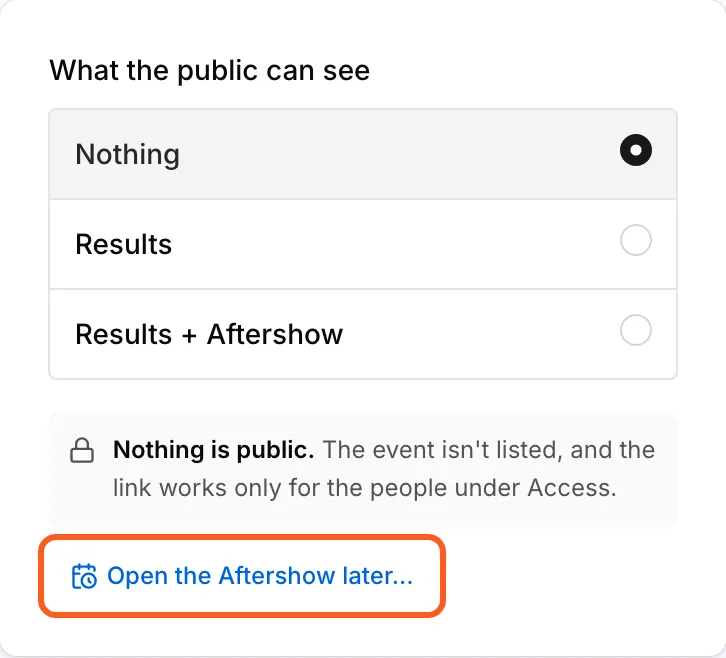
Under Public access, select Open the Aftershow later….
-
Pick the date and time. OResults reads it in the event’s Timezone, set under Event info on the same page.
-
Select Schedule. The line under the options names the time the Aftershow opens. The Aftershow opens at that time with nobody at a computer, and the results open with it if they are not public yet.
Once a time is set, the button reads Change when it opens…, and Cancel beside it drops the schedule and keeps the Aftershow private. Scheduling an Aftershow that is already public takes it off until the time you pick.
Check the Aftershow
Section titled “Check the Aftershow”- Open the event from Events → My events, then select File upload under Manage, and read the Aftershow card under Healthcheck. Healthcheck lines on the Event files page explains each line.
- In the event’s menu, select Aftershow. While it is not public, the row carries Private: you can open it, the public cannot.
- In a class with tracks, check that they run over your map, with the course drawn on it, and not over a street map.
Troubleshooting
Section titled “Troubleshooting”Check the Aftershow
Section titled “Check the Aftershow”No map uploaded, or the tracks run over a street map: the event has no base map, so the Aftershow draws on the street map underneath. Upload the map as described in Upload maps and courses.
Courses aren’t drawn on the map: the course file has no control coordinates. Re-export the courses with control coordinates and upload them as described in Upload the courses on the Upload maps and courses page.
No GPS tracks yet: no runner has connected a run to the event. While What the public can see is Nothing, runs cannot connect to the event, as Connect it to your event on the Put your run in the Aftershow page describes. Choose Results or Results + Aftershow, or wait for the scheduled time, and runs connect then. Point runners without a connected run to Put your run in the Aftershow.