

Get Blueboxes
A Bluebox sits next to the SI station at a control and sends each punch to OResults as the runner passes. Rent Blueboxes from OResults for your event, or use your own online controls instead.
Plan how many you need
Section titled “Plan how many you need”Put online controls where someone is waiting for a split:
- About 3 forest controls for each featured class (M21E, W21E or other classes the commentators follow).
- The last control, often code 100, so the commentators see who is coming.
- The finish, so the finish time does not wait for the runner’s readout.
- Arena passages and spectator loops.
As a rough guide:
- Local or club event: 2 or 3 Blueboxes.
- National event: 5 to 8.
- International event: 10 or more, depending on its featured classes, spectator areas and TV controls.
Rent Blueboxes
Section titled “Rent Blueboxes”- Open the Online controls page at oresults.eu. Its table lists the price for each number of Blueboxes. Select a row to put that number into the request message.
- Under Get in touch, pick the EU (English) or CZ (Czech) tab, then enter Your email and replace the placeholders in Message with your club, event and dates. Switching the tab or selecting a price row afterwards rewrites the message.
- In the message, name the OResults account that creates the event. OResults assigns rented Blueboxes to one account, and an event can use only the devices on the account that created it.
- If your runners use cards older than SIAC, ask for SPORTident SRR stations in the same message. OResults lends them free of charge when they are not already leased to another event; Configure the SI stations on the Set up online controls page covers their settings.
- Complete the verification check that appears below the message and select Send. The page confirms with Message sent. If it says Please complete the captcha to verify you are not a robot., complete the check and select Send again.
OResults confirms availability, discusses the details with you and sets up a WhatsApp group for support during the rental.
Before the race, you can borrow Blueboxes free of charge to try them at a training or a smaller event.
Rented Blueboxes usually ship the week before the event, via Zásilkovna or another carrier, whichever is most convenient.
OResults invoices the rental directly after the event, not through Billing.
When they arrive
Section titled “When they arrive”-
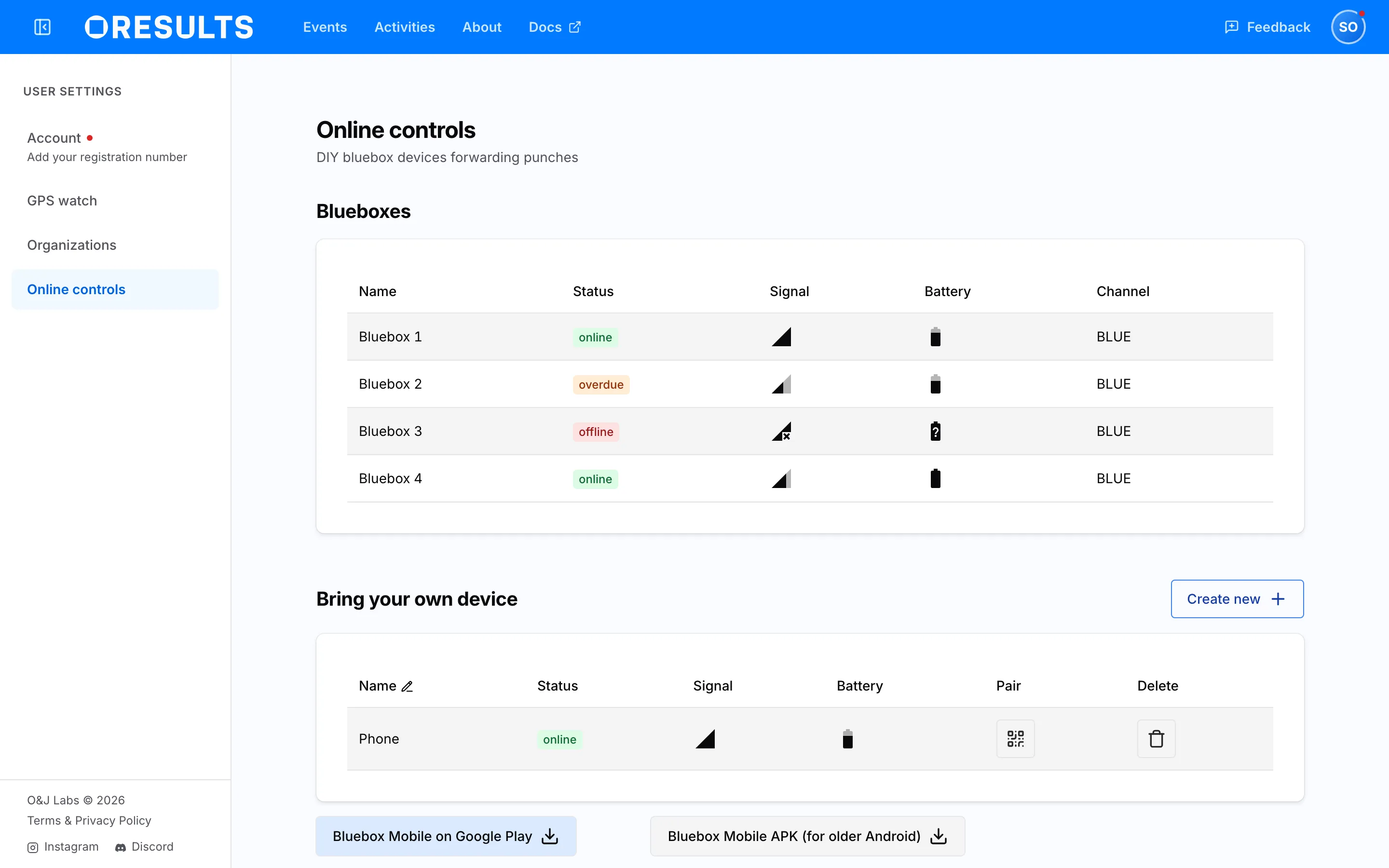
Open your account menu (the avatar at the top right; on a phone, Account in the menu) and choose Online controls. Your rented Blueboxes are listed under Blueboxes.
-
Charge each Bluebox from a 5 V charger. A full charge lasts more than 20 hours.
-
Switch each Bluebox on and check that its Status reads online and Battery shows its charge. The list refreshes every 5 seconds. Monitor online controls on race day explains the other statuses.
Set up online controls links them to your event, and Place Blueboxes covers where they go.
Return them
Section titled “Return them”Return instructions come with your rental confirmation.
Use your own online controls instead
Section titled “Use your own online controls instead”- A phone. An Android phone running the Bluebox Mobile app works as an online control. See Use a phone as an online control.
- Other equipment, through your timing software. Timing software can forward the punches from its own online controls. MeOS sends them to OResults with the results over the MeOS Online Protocol, and OResults records them as punches; see MeOS.
- Not sure your equipment works. Contact us and describe it.
Your own online controls carry a fee, paid on the event’s Billing page. Pay for your event says when it applies.
Troubleshooting
Section titled “Troubleshooting”When they arrive
Section titled “When they arrive”No Bluebox is currently assigned to your account.: OResults has not assigned your Blueboxes yet, or assigned them to another account. Check that you are logged in with the account you named in the request, then contact us.