

Aftershow
This page lists every control, setting, shortcut and access message of an event’s Aftershow, where the runners’ GPS tracks play over the event map. To publish the Aftershow, see Publish the Aftershow; to add your own run, see Put your run in the Aftershow. How the tracks get there is in GPS tracks from runners on the How OResults works page.
Runners and classes
Section titled “Runners and classes”The runner panel opens by itself on a computer and stays closed on a phone. While it is closed, its button carries the class on the map.
| Control | What it does |
|---|---|
| Class picker | Picks the class on the map. Each entry reads its tracks and course, such as 3 tracks · 3.0 km, 24 controls; No tracks yet means nobody in the class has a track. Classes without a course are not listed. |
| Relay leg chips | On a relay event, each class is one row with a numbered chip per relay leg. Select the chip of the relay leg you want. |
| Filter classes | Filters the open class picker by name. Shown when the picker lists more than 12 classes (each relay leg counts). |
| Magnifier | Searches the class’s runners by Name, bib or club. |
| Compact rows / Full rows | The two buttons at the left of the row under the class picker: one line per runner with the club beside the name, or two lines that add the bib and distance run. Your browser remembers the choice. |
| All | Shows every listed runner on the map, or hides them all when all are shown. After a search it acts on the matches only. |
| Count beside All | Runners drawn on the map out of all runners in the class. |
| Colored circle | Draws that runner on the map or takes them off. Hiding a runner also deselects them. |
| Rest of the row | Selects the runner. Selected runners stay at full strength while everyone else on the map dims, so you can follow two or three people through the field. |
| Selection count, such as 2 selected ✕ | Clears the selection. Changing class clears it too, and shows every runner again. |
| Time in a row | The official result time when there is one, otherwise the duration of the GPS track. A GPS time is gray while live data is still arriving. |
| no GPS | OResults could not load that runner’s track. |
No GPS tracks yet in the panel means no runner in the class has a track in the Aftershow. If your own run is missing, see Put your run in the Aftershow.
Replay
Section titled “Replay”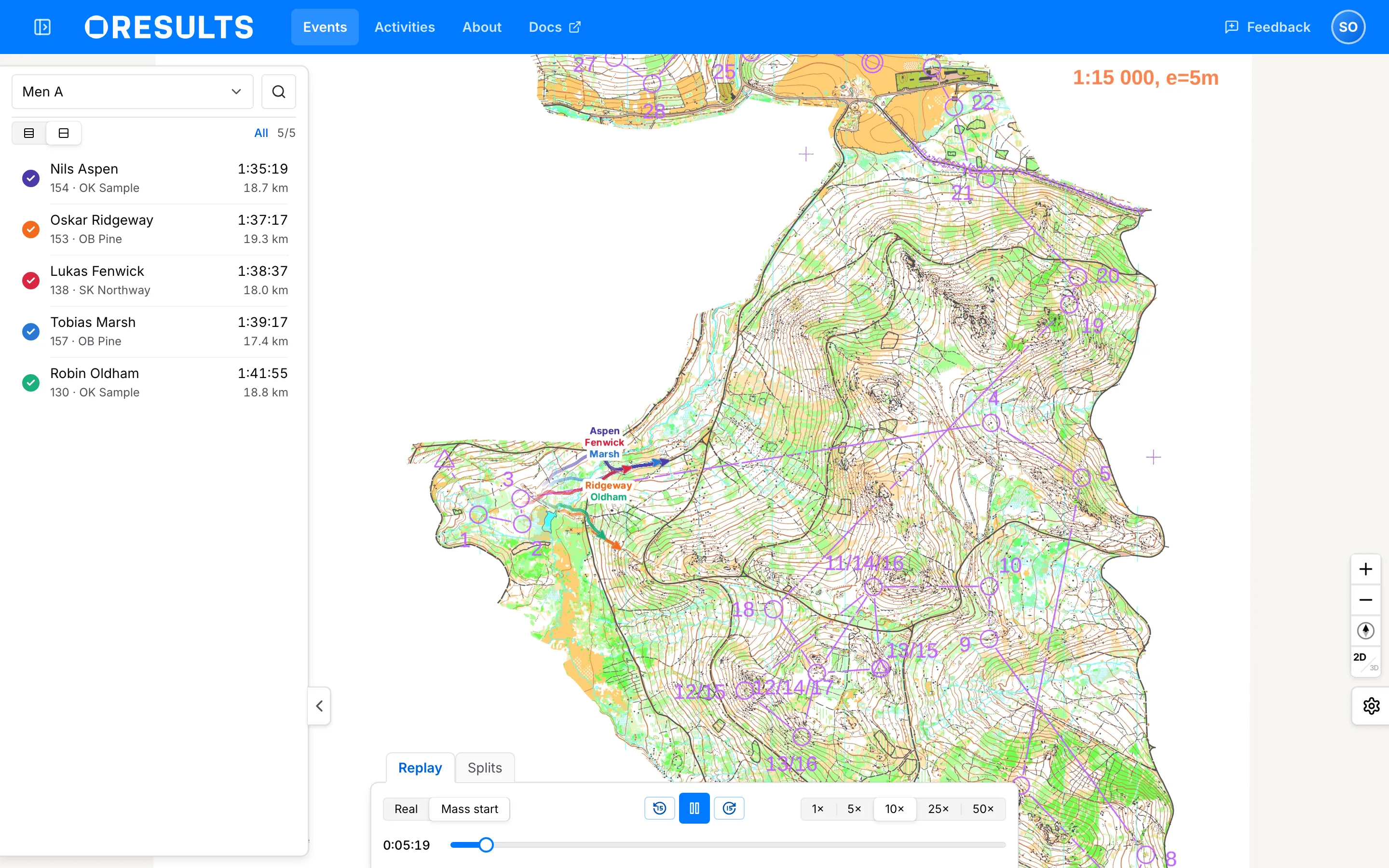
The Replay tab under the map animates the class’s tracks. It starts playing on its own once the first track arrives.
| Control | What it does |
|---|---|
| Real | The clock shows the time of day, and each runner sets off at their own start time. |
| Mass start | Every runner sets off together from the course start, with the clock counting from 0:00:00, so runners who started hours apart run side by side. A finished event opens in Mass start when its course has a located start, a running one in Real. If it is dimmed with No located start on this course., the course has no position for its start. |
| Rewind and forward | Jump 15 seconds back or forward. |
| Play / Pause | Dimmed with Waiting for GPS tracks… while the class’s tracks load. |
| 1× to 50× | Playback speed: 1×, 5×, 10×, 25× or 50×. It starts at 10×. On a phone it is a drop-down (1x–50x). Dimmed with Live follows in real time. while Live is on. |
| Clock and scrubber | The time shown on the map. Drag the scrubber to any moment. No GPS tracks in this class yet. takes its place while the class has no track. |
| Live | Follows the newest positions in real time. Shown while tracks have arrived within the last five minutes, and dimmed in Mass start and after Start from here. A running event opens on it while tracks are arriving. |
| Start from here | Right-click the map, or long-press it on a touch screen. Every runner’s clock restarts at 0:00:00 at the moment their track came closest to that point, which lines up routes through a butterfly loop or a shared stretch. Real switches back. |
| Ring flashing out of a runner | The runner reached a control at that moment. It appears where their track crossed the control (at the official punch time when the track has none) and lasts about a second at any speed, so a runner who punches out of sight of the clock still shows it. It shares the tracks’ opacity setting: hidden tracks mean no rings. |
| Control | What it does |
|---|---|
| Zoom in / Zoom out | Not shown on a phone; pinch instead. |
| Compass (Back to map north) | The needle points at map north, the direction of the map’s printed north lines, not true north. Selecting it turns the map back to map north. |
| Level the map | The same button once the map points north but is still tilted: tilts it back flat. |
| 2D / 3D | Drapes the map over the terrain and lets you tilt it, or lays it flat again. The larger label is the mode the map is in. Your browser remembers it with the settings. |
| Gear (Open map settings) | Opens the Settings panel. |
The event map is drawn over a street map. An event without an uploaded map shows the street map alone, and No map or GPS data available means the class has no map, no course positions and no tracks. Organizers fix both as described in Upload maps and courses.
Settings
Section titled “Settings”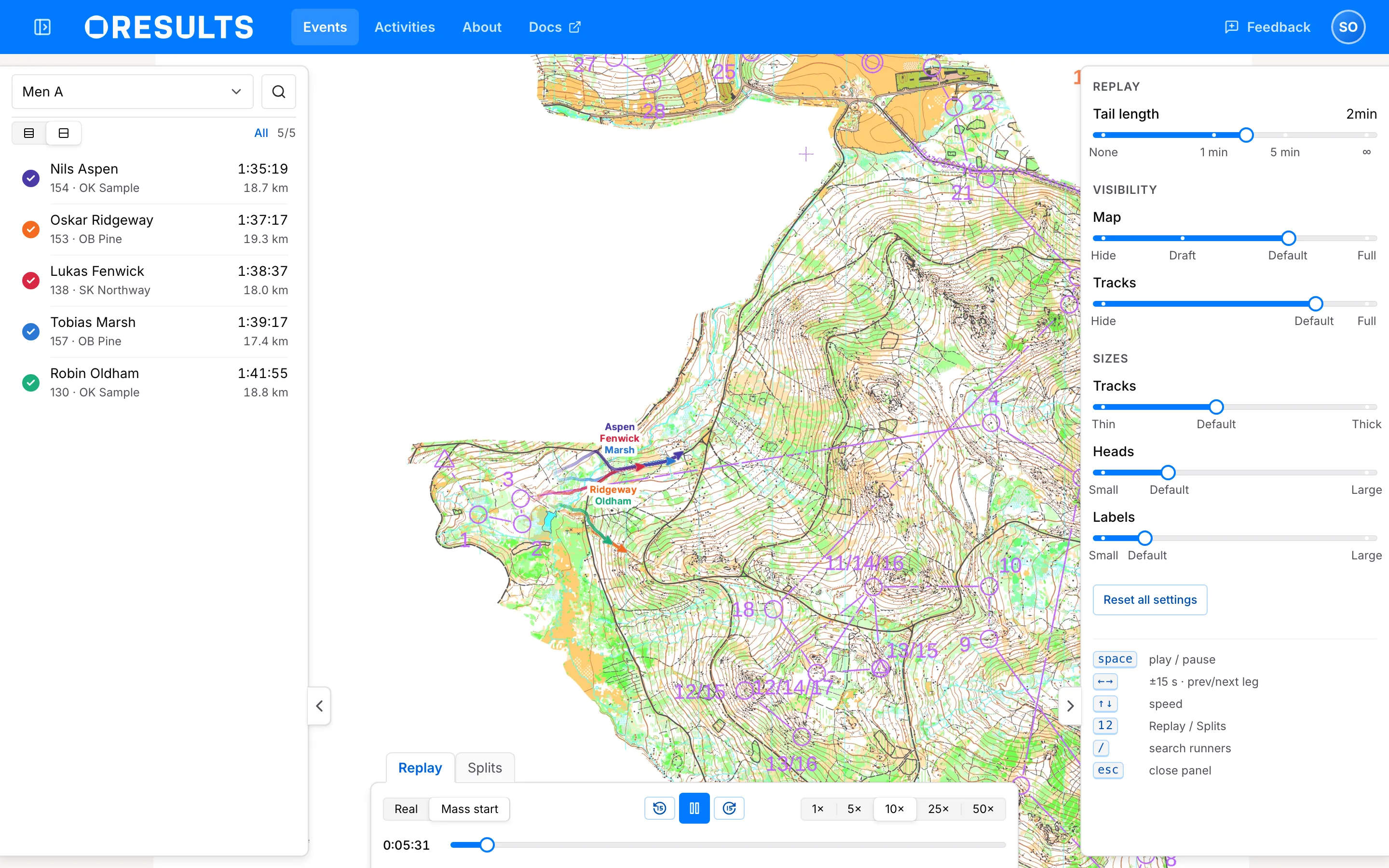
Your browser keeps these settings and applies them to every Aftershow you open in it.
| Setting | What it does |
|---|---|
| Tail length | How much trail each runner drags behind them, from None through 1 min and 5 min to ∞ (reads Infinite). It starts at 2 minutes. Sits under Replay in the panel, dimmed on Splits. |
| Map | How strongly the event map is drawn, from Hide through Draft to Full. |
| Course | How strongly the course is drawn, from Hide to Full. Shown only when OResults draws the course from its control positions. A course from an OCAD file is part of the map image and fades with Map. |
| Tracks (Visibility) | How strongly the tracks are drawn, from Hide to Full. |
| Tracks (Sizes) | Width of every track line on Replay and Splits, from Thin to Thick. |
| Heads | Size of the runner markers, from Small to Large. |
| Labels | Size of the name labels, from Small to Large. |
| Reset all settings | Puts every setting back to its default, including 2D / 3D. |
On a computer, the keyboard shortcuts are listed at the foot of the panel.
Splits
Section titled “Splits”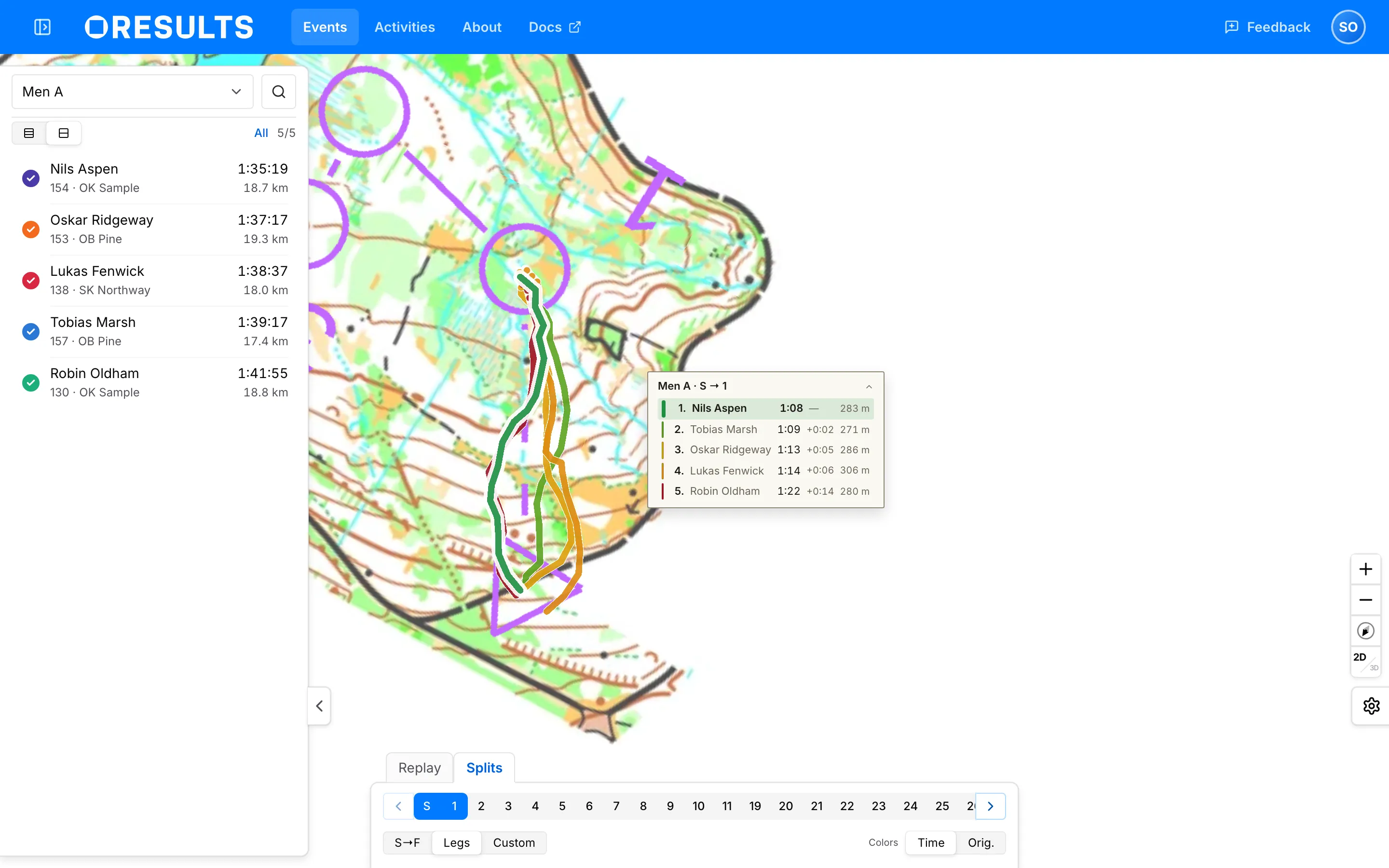
The Splits tab cuts each runner’s track into splits and ranks the runners on each. Opening it pauses Replay. A split time is the runner’s official split where they punched, and the GPS time at the control otherwise.
| Control | What it does |
|---|---|
| Leg strip | One chip per control, S first and F last. A chip selects the leg that ends at it; the arrows either side step one leg. |
| S→F | Ranks the whole course as one split. |
| Legs | Ranks one leg at a time, starting at the first. |
| Custom | Ranks a stretch between two points you tap on the map, prompted by Tap the map — place the split start and Start set — now tap the split end. Each runner’s fastest passage between them counts. Another tap starts the next stretch at the last end point; Clear starts again. |
| Time | Colors each route by its split: green for the fastest, amber for the middle of the field, red for the slowest. The default. |
| Orig. | Keeps each runner’s own color from Replay, for following named runners rather than reading the spread. |
| Dotted end of a route | What that runner still had to run when the fastest had finished the split. |
| Part | What it does |
|---|---|
| Header, such as Men A · S → 1 | Names the class and the split. Select it to fold the board; drag it to move the board. |
| Rows | Rank, name, split time, time behind the fastest, and distance run, fastest first. Hover a row to highlight that runner’s route; select the row to keep it highlighted. |
| no time | Runners on the map for whom the split has no time, listed last. |
| Show all / Show less | The board shows 10 rows on a computer and 3 on a phone. Show all, with the number of runners, lists the rest. |
The class and the selected leg are part of the page address, so a copied link opens the same split. A Custom split is not.
| Message | What it means |
|---|---|
| No split data for this leg. / No split data for the whole course. | No runner on the map has a time for that split. |
| No tracks pass within 35 m of both points. | No track came within 35 m of both Custom points. Select Clear, then tap two points on or near the routes. |
| This course has no legs to select. | The class’s course has no control-to-control leg. |
| Select a class with a course to browse its legs. | No class with a course is selected. |
Keyboard shortcuts
Section titled “Keyboard shortcuts”On a computer. The keys do nothing while you type in a field or while a button or slider has focus. In the runner search, Esc clears the search, then closes it.
| Key | Does |
|---|---|
| Space | Play or pause, on Replay. |
| ← / → | 15 seconds back or forward on Replay; previous or next leg on Splits. |
| ↑ / ↓ | Faster or slower playback, on Replay while Live is off. |
| 1 / 2 | Switch to Replay / Splits. |
| / | Open the runner panel and its search. |
| Esc | Close the settings panel, or the runner panel when settings are closed. |
Access
Section titled “Access”| Message | What it means |
|---|---|
| Not published beside Aftershow in the event’s menu | The organizer has not opened the Aftershow. Organizers open it as described in Publish the Aftershow. |
| A time or date beside Aftershow, such as at 20:00 | The Aftershow opens to everyone at that moment. |
| Private beside Aftershow | The Aftershow is not public; you can open it because you organize the event or were invited to it. To open it to everyone, see Publish the Aftershow. |
| This replay is private. Open it with your invite link, or log in. | You are logged out and the event is not public. Log in, or open the invite link the organizer sent. |
| You don’t have access to this replay. Ask the organizer for an invite link. | The Aftershow is not public yet, and you are logged out or your account has no access to it. If you organize the event or were invited, log in; otherwise ask the organizer for an invite link. |
| This invite link is no longer valid | The invite link expired or the organizer revoked it. Ask the organizer for a new one. |