

Event files
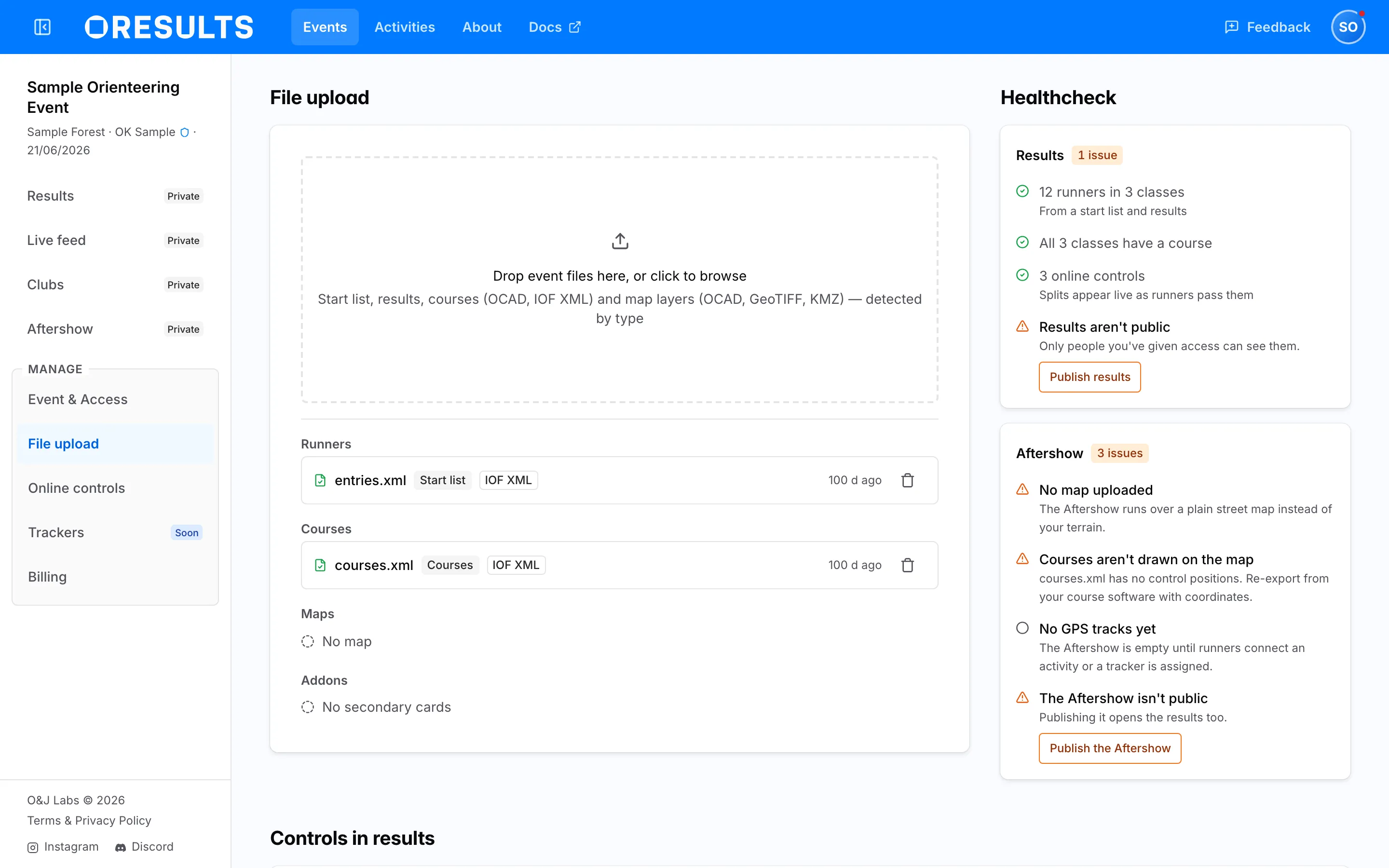
Every value the File upload page shows, for Upload start lists and results and Upload maps and courses.
Formats
Section titled “Formats”The File upload page accepts only the extensions below, and OResults reads what a file is from its contents. A KMZ is the exception: it is taken on its .kmz extension.
| File | What it gives the event |
|---|---|
OCAD map, .ocd |
One map layer of the base map. Saved in OCAD file format 9, 10, 11, 12 or 2018; an older file is sent, then refused with Unrecognized format — expected …. |
OCAD course-setting project, .ocd |
The courses and their overprint drawn on the map. It uploads together with the map layers, one per upload. |
GeoTIFF, .tif or .tiff |
One map layer. No courses. |
KMZ, .kmz |
One map layer. No courses. The archive must contain a .kml file. |
IOF XML 3.0 start list, .xml |
The runners and their classes. |
IOF XML 3.0 result list, .xml |
The results, and the runners and classes in them. |
IOF XML 3.0 course data, .xml |
The courses, with control coordinates where the file carries positions. |
SportSoftware RadioControlList, .xml |
The online controls of each class only. No control sequence, so no splits. |
OCAD Text v8 course export, .txt or .csv |
The courses, without control coordinates, so they are not drawn on the map. |
Secondary cards, .csv or .txt |
One primary card,secondary card pair per row, comma or semicolon, no header row. A punch from the secondary card counts for the runner who has the primary card. |
Compressed files (.zip, .gz) are not accepted: extract them first. One file may be up to 50 MiB and up to 20 files can be staged at once; the map layers with the course-setting project, and the other files, may each be up to 200 MiB together.
What an upload will do
Section titled “What an upload will do”Dropping a file stages it as a card under Ready to upload, with a badge (Start list, Results, Courses, Map or Secondary cards) and a line saying what uploading it will do. Nothing is sent until you select Upload n files.
| Card line | Means |
|---|---|
| New start list | The event has no start list yet. Runners already in the event from results but missing from this file are removed. |
| Replaces the start list — runners not on it are removed | The new start list replaces the old one. Runners missing from the new file are deleted from the event. |
| New results | The event has no results yet. |
| Updates the results | The event already has results; this file updates them. |
| New courses | The event has no courses yet. |
| Replaces the courses | The file replaces the event’s courses. A file without control coordinates never replaces courses that have them; it applies only its online controls, and the card says so after the upload. |
| Courses and overprint | An OCAD course-setting project: it imports the courses and draws their overprint on the map. |
| New map layer | The file adds a layer to the base map. |
| Replaces layer and a filename | A layer with the same filename is already uploaded, and this file replaces it. |
| New secondary cards | The event has no secondary cards yet. |
| Replaces the secondary cards | The file replaces the event’s secondary cards. |
| Superseded — won’t upload | A card staged after it is the same kind of file, and only the last one uploads. Map layers are never superseded: all of them upload. |
| Unrecognized — this format can’t be imported | OResults cannot read the file, and it is not sent. |
| This file type can’t be imported | The extension is not one listed under Formats. |
| This file is … MiB — the limit is 50 MiB | The file is too large, and it is not sent. |
| Too many files at once — 20 is the limit, upload these in a second batch | More than 20 files are staged at once. |
| Already staged — its card is below | The same file is already on a card. |
When the staged files are too large together, the cards end with These files are … together — one upload may carry at most 200 MiB. Remove some and upload them in a second batch.
After the upload, a card that landed with nothing to report clears, and its file appears in its set. A card that stays says why:
| Card after upload | Means |
|---|---|
| An amber line | The file landed but did less than asked; the line says what was kept and what was applied. |
| A red line with Retry | The upload of this file failed. Retry sends it again; on the map card it is Retry all. |
| Lost contact while the server was working — it may have finished. Reload to check. | The connection dropped after the files arrived, and the server may have finished. See Troubleshooting on the Upload maps and courses page. |
| The server didn’t report on this file — reload to check | The server answered without this file. Reload and look in the file sets. |
File sets and deleting
Section titled “File sets and deleting”Below the dropzone, the uploaded files are grouped into four sets. Each file shows its kind (Start list, Courses…) and its format (IOF XML, OCAD map, OCAD course, GeoTIFF, KMZ, OCAD Text v8, SportSoftware, CSV). A set can only be deleted whole, with the trash icon on the set.
| Set | Holds | The trash deletes |
|---|---|---|
| Runners | the start list and the results | Delete runners: all runners from the start list and results, with their classes, clubs and relay teams. Recorded punches and courses stay. |
| Courses | the course files | Delete courses: all courses, the overprint drawn over the map, and the matches made in Match classes to courses. Runners, punches and results stay. |
| Maps | the map layers and the Base map they render into | Delete maps: all map layers, the base map and the overprint rendered from them. Runners, courses and punches stay. |
| Addons | the secondary cards | No delete. A new secondary-cards file replaces them. |
A course file can carry one badge: No control coordinates (the courses cannot be drawn on the map) or Online controls only (the file names online controls and no control sequence). The Base map line shows a thumbnail, Rendered from and the number of layers, and any amber line the render worked around; Troubleshooting on the Upload maps and courses page covers each. An empty set reads No start list, No results, No courses, No map or No secondary cards.
Healthcheck lines
Section titled “Healthcheck lines”Healthcheck holds two cards, Results and Aftershow. An amber triangle is a warning, a gray circle is a note that may be deliberate, and a green check marks a requirement that is met. The badge on each card counts warnings only: All good, or the number of issues.
Results
Section titled “Results”| Line | State | Where it is fixed |
|---|---|---|
| No runners yet | warning | Send or upload the start list: see Upload start lists and results. |
| … runners in … classes | met | |
| … class has no course or … classes have no course | warning | Those runners get a time but no splits. See Match classes to courses on the Upload maps and courses page. |
| All … classes have a course | met | |
| Your courses are incomplete | warning | The only course file lists online controls and no control sequence. Upload the full course file: see Upload the courses on the Upload maps and courses page. |
| … course has no runners or … courses have no runners | note | They show as empty classes on the public results page. See Match classes to courses on the Upload maps and courses page. |
| … online controls | met | |
| No controls are marked as online | note | Select the Select online controls button on the line: see Select the online controls on the Set up online controls page. |
| Results are public | met | |
| Results go public and a date | note | A release is scheduled. |
| Results aren’t public | warning | Only people with access see them. Select Publish results, then see Control who sees your event. |
Aftershow
Section titled “Aftershow”| Line | State | Where it is fixed |
|---|---|---|
| Map ready | met | |
| No map uploaded | warning | The Aftershow runs over a plain street map. See Upload the map on the Upload maps and courses page. |
| Courses are drawn on the map | met | |
| Courses aren’t drawn on the map | warning | The course file has no control positions. See Upload the courses on the Upload maps and courses page. |
| … uses its own map or … use their own map | note | Those classes run on a map uploaded for them, with its own overprint; the event map and course drawing do not apply to them. |
| No GPS tracks yet | note | The Aftershow stays empty until runners connect a run: see Put your run in the Aftershow. |
| … tracks in … classes | met | |
| The Aftershow is public | met | |
| The Aftershow goes public and a date | note | A release is scheduled; the results open at the same time. |
| The Aftershow isn’t public | warning | Publishing it opens the results too. Select Publish the Aftershow, then see Control who sees your event. |