

Monitor online controls on race day
Test each online control with a card before the first start, then watch the Status table during the race to catch a device that stops sending punches.
Before you begin
Section titled “Before you begin”- The devices linked to your event, as Link the devices to the event on the Set up online controls page describes.
- The devices switched on and placed at their controls, as Place Blueboxes describes.
- A SPORTident card to test each online control with.
Check the status table
Section titled “Check the status table”-
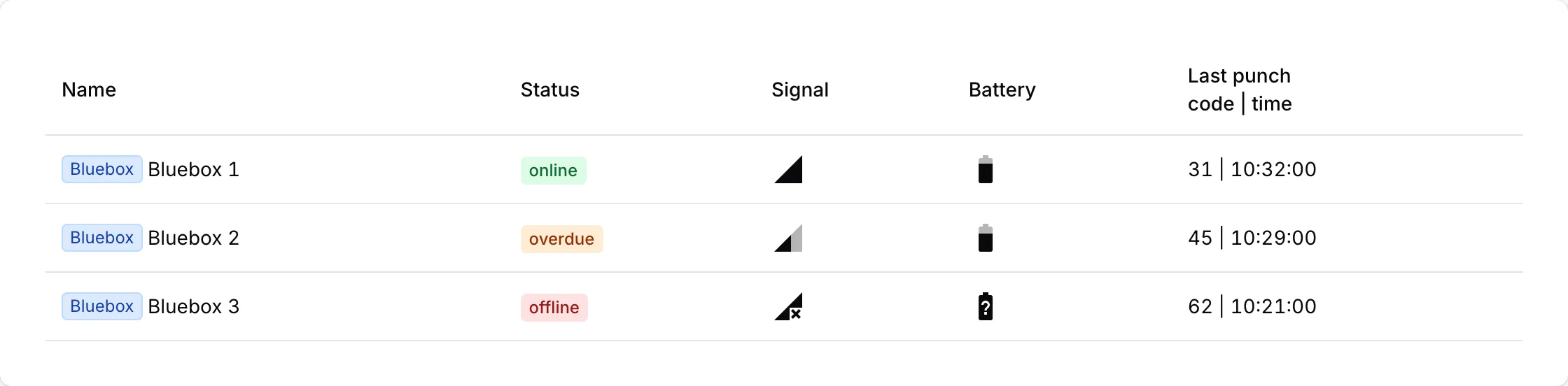
Open the event from Events → My events, then select Online controls under Manage, and find the Status table. It refreshes every 5 seconds without a reload.
-
Before the first start, punch the card at the SI station of each online control. The device’s row shows the control code and the punch time under Last punch.
-
During the race, watch the Status column and Last punch of each device.
The Status column says when OResults last heard from the device itself:
- online: the device sent a status message in the last 45 seconds.
- overdue: the last status message is between 45 seconds and 10 minutes old. Signal and Battery show the reading from that message.
- offline: no status message has arrived for 10 minutes, or none ever has. Signal and Battery show no reading.
A device sends status messages separately from its punches, so online does not prove that its SI station forwards punches. Last punch does. It shows the code and time of the newest punch the device delivered for this event, in the event’s time zone.
The status never blocks a punch. A punch that reaches OResults from a linked device counts whatever the Status column shows.
Troubleshooting
Section titled “Troubleshooting”Check the status table
Section titled “Check the status table”No devices assigned to this event. Start by linking a device to the event.: no device is linked to this event yet. Link them as Link the devices to the event on the Set up online controls page describes.
No devices available. Rent a Bluebox to get started.: the Status table cannot list any device of the account that created the event. Follow Link the devices in the Set up online controls troubleshooting.
A device shows offline: OResults has had no status message from it for 10 minutes. Go to the control and check that the device is switched on and charged. If it is, move it where the mobile signal is better, still within reach of the SI station as Place Blueboxes describes. For a phone, work through Keep the app running on the Use a phone as an online control page.
A device keeps showing overdue: its status messages arrive late or not at all. If Last punch keeps updating, the control works and needs nothing. If it does not, treat the device as offline.
A device is online, but Last punch stays empty or does not change after a test punch: the device reaches OResults, but no punch reaches the device. Check, in this order:
- The SI station has Auto send checked, as Configure the SI stations on the Set up online controls page describes.
- The Bluebox is within reach of the SI station, as Place Blueboxes describes.
- For a phone, the dongle and app are ready, as Send punches on the Use a phone as an online control page describes.
Last punch shows a time far from the real one: OResults takes the punch time from the SI station, so the station’s clock is wrong. Set the station’s clock with SPORTident Config+.